Utilities
WinPicks Reference Manual Section 10. Utilities
This section discusses some features that were included to make WinPicks as versatile as possible. These features cover the Data Sources window, getting help, and exporting the WinPicks database so it can be used by other applications. To copy any report to the clipboard, choose Edit > Copy to Clipboard; for large amounts of data, use the Export features below.
This section covers the following topics:
- 10.2 - Changing the Data Directory
- 10.4 - Getting Help
- 10.5 - Exporting Data to Microsoft Excel
- 10.6 - The Add-Ins Menu
Changing the Data Directory
The original program stored its database in a folder on your computer and let you point it somewhere else - a second drive, or a shared folder on a network. WinPicks 2.0 keeps the database on the server. Your formulas, your saved trends, your tuner settings and your price basis are stored with your account, and reach you on any machine you sign in from. There is no folder to choose and nothing to back up.
The menu item remains, and now opens a small window called Data Sources. It reports where the server keeps each sport's formulas, how many are stored, and whether every screen is reading the same copies - and if two copies of a formula ever disagree, it says so and offers the repair. Most customers will never need it; it exists so that the answer to "where is my work, exactly?" is a screen rather than a support question.
Getting Help
WinPicks Reference Manual Section 10.4. Getting Help
Press F1 on any screen, or select CONTENTS from the HELP menu, for help on the screen you are on: what it is for, how to use it, and where to go next, followed by a short glossary of the words the program assumes you know. From the main window, F1 gives a short tour instead. The complete reference - this manual - is at winpicks.net/manual/, and the chapter WHAT'S NEW IN WINPICKS 2.0 is the place to start if you knew the Windows program.
The HELP menu also includes a TREND COMMAND REFERENCE, which documents the command grammar the Trend Finder accepts (see section 9), and SHOW ALL MESSAGES AGAIN, which brings back any explanatory messages you have dismissed with "don't show this again".
There is no CHECK FOR SOFTWARE UPDATES item any more, and nothing to check: WinPicks 2.0 is maintained on the server, so a fix or a new feature is simply there the next time you sign in.
Reporting a problem. If something is not working, or a result looks wrong, select REPORT A PROBLEM from the HELP menu. Describe what you were trying to do and what happened; if it concerns a prediction or a result, name the game and the formula. Add a screenshot with the button, or take one with Print Screen and paste it into the window with Ctrl+V. The sport, the screen you were on, the formula and the date are attached automatically and listed under "Sent with your report", so you need not type them. Press SEND REPORT. Every report is read.
The same window sends a suggestion: choose I HAVE A SUGGESTION at the top and tell us what you would like WinPicks to do.
For anything else, choose MY ACCOUNT from the HELP menu and follow the Contact link on your account page. We respond to most questions within 24 hours.
Exporting Data to Microsoft Excel
WinPicks Reference Manual Section 10.5. Exporting Data to Microsoft Excel
Nearly all of the data in the WinPicks database can be exported. WinPicks generates comma-separated value (.csv) files, which Microsoft Excel opens directly - as does any other spreadsheet, database, or programming language.
The original program could also start Excel itself and fill in a worksheet. A browser cannot start programs on your machine, so the export window offers the next best thing: EXPORT GAMES can write a genuine Excel workbook (.xlsx) instead of a .csv. It opens in Excel on a double-click with every column already the right type - no import wizard, no leading zeros lost, no score read as a date. The other two exports write .csv, which Excel also opens directly. Every exported file arrives through your browser's normal download.
There are three different export features in WinPicks, and each is described below.
Export Current Report. Display any report on the screen, then select EXPORT CURRENT REPORT from the FILE menu. Whatever report is on screen is saved as a .csv file.
Export Games (Scores, Lines, Stats by Date). Select EXPORT GAMES from the FILE menu. The window shown in Figure 10.51 will appear, and you can export the entire database or a range of dates.
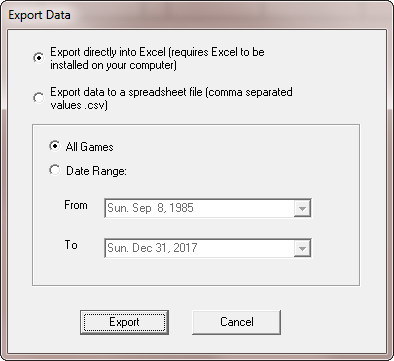
Figure 10.51 - The Export Data Window
When this option is used with Pro Football Analyst (PFA), it exports the date, Nevada rotation number, score, pointspread, and totals (over/under) information, as well as all of the game statistics found in the boxscore. The other four packages export the date, rotation number, score, pointspread, and totals information. Rotation numbers are only included for games with odds, odds (particularly totals) are not included for some games, and rotation numbers are missing for CFA, PFA, and PBA games prior to 1997.
All packages contain all regular season and postseason games in their database, dating back to 1985 for the football versions, to 1990 for PBA, and to 2000 for CBA. Many thousands of games are exported if you select all games with this feature.
Export Team Database (totals). Select EXPORT TEAM DATABASE from the FILE menu to export the information found in the database about each team, including won/loss records, against the spread (ATS) and totals records, and average margin of victory (AMOV) at home and on the road - plus, in Pro Football Analyst, the game statistics found in the boxscore. The amount of information exported depends upon the database method that is currently in use.
The Add-Ins Menu
WinPicks Reference Manual Section 10.6. The Add-Ins Menu
The ADD-INS menu collects the tools that are not part of the original program's menus. What it lists depends on the sport.
- FORGE - FORMULA DESIGNER - designs a formula from a question. Pro Football Analyst. See section 8.
- WEATHER LAB - tests weather cut-offs against the betting line. Pro Football Analyst. See section 7.
- ODDS COMPARE - every bookmaker quoting a game, the best number marked, line movement, and the public's tickets and money. All sports. See section 6.
- INJURY REPORT - the full designation list for the next game day. Professional sports. See section 6.
- BABE OF THE WEEK - a weekly vote among pictured candidates, for members. Every candidate is a fictional character generated by AI; none depicts a real person, and the page says so. Like as many as you please - a like toggles on and off - and the candidate with the most likes wins the week.