Selecting a Database
WinPicks Reference Manual Section 4. Selecting a Database
All WinPicks products include a huge database of past game results, schedules, and statistics. The amount of data included with WinPicks differs from product to product, as listed below:
- Pro Football Analyst (PFA) The database includes all schedules, scores, lines, and game statistics from the 1985-86 NFL season through the current season, updated as the games are played.
- College Football Analyst (CFA) The database includes all schedules, scores, and lines from the 1985-86 NCAA season through the current season, updated as the games are played.
- Pro Basketball Analyst (PBA) The database includes all schedules, scores, and lines from the 1990-91 NBA season through the current season, updated as the games are played.
- College Basketball Analyst (CBA) The database includes all schedules, scores, and lines from the 2000-2001 NCAA season through the current season, updated as the games are played.
This section covers the following topics:
- 4.1 - The Database Method
- 4.2 - Changing the Date
- 4.3 - Adjusting the Database One Date at a Time
The Database Method
WinPicks Reference Manual Section 4.1. The Database Method
You can view the information in the database on screen, use it to generate a variety of printed reports, and of course, use it for handicapping. Before using the database, however, you must select a database method (the default method is a 6-game rolling average).
All versions of WinPicks can use three different database methods. The method you choose depends upon your application. This section discusses how each method works, and when it should be used.
The DATABASE indicator on the tool bar displays the name of the database method currently in use. When you change methods, the message "Adjusting Database ...." will be briefly displayed.
Season to Date
This method is used both by handicappers and fans who want to use all of the stats from the current season. One benefit of this method is that the team records in the database are from the current season only, and will agree with the official league standings.
Season to date totals work like this: If a team has played 4 games during the current season, the database will include all 4 games. After the team plays its 5th game, the database will be adjusted to include all 5 games. The database always contains all of the games from the current season.
If games from the current season are not available, the database includes all of the games from the previous season. This situation only exists until data from the current season becomes available.
WinPicks automatically adjusts the database when new data is added to the database, or when you change the current date. To use season to date totals, select SEASON TO DATE from the DATABASE menu, or:
- Select this button from the tool bar:

Rolling Average
This method is normally used by handicappers who are attempting to predict the winner or point spread of a game. Since momentum is a key factor when predicting the outcome of games, handicappers are often most interested in the results of a team's most recent games. A rolling average supplies them with this information. For example, a 3-game rolling average uses the stats from each team's 3 most recent games. When a team plays their next game, it automatically becomes part of the new 3-game rolling average. The game from Week 1 "rolls off" and is no longer included.
To use a rolling average, select ROLLING AVERAGE from the DATABASE menu, or:
- Select this button from the tool bar:

The rolling average menu appears as shown in Figure 4.10. You may select a rolling average using from 1 to 30 games. A 6-game rolling average is used as a default value. There is no hard and fast rule as to which rolling average is the most effective. However, football handicappers often use a rolling average of 3 to 8 games, whereas basketball handicappers may use a rolling average of 10 games or more (for more information, see Appendix A).
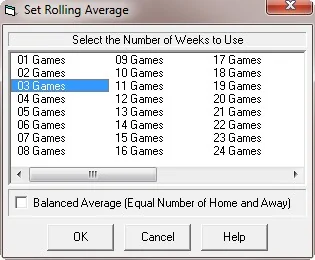
Figure 4.10 - The Rolling Average Menu
If you check the box labeled "Balanced Average", the database will include an equal number of home and away games. For example, if you use a 6-game rolling average, the database won't necessarily include the 6 most recent games a team has played. Instead, it will include each team's 3 most recent home games, and 3 most recent road games. Using a balanced average is probably more useful for handicapping the NBA (where teams have extended road trips and homestands), than it is for handicapping football.
The selected rolling average is automatically adjusted whenever new data is added to the database, or when you change the current date.
Fixed at Date
The fixed at date method is used by those who want the database to include all available information from a certain date forward (the date can be from either the current season or a past season). You can use this method to use all of the data included with WinPicks. To do so, you would specify the oldest data in your database as your starting point. Whenever new information is added, it automatically becomes part of the database.
FIXED AT DATE has many interesting uses. For example, you can use it to see which team has the highest power rating or winning percentage over periods longer than one season. You can go back as far as you want, whereas a rolling average is limited to 30 games. The database is automatically adjusted when new data is added, or when you change the current date.
To use fixed totals, select FIXED TO DATE from the DATABASE menu, or:
- Select this button from the tool bar:

The FIXED AT DATE window includes a list of available dates and a calendar. The calendar is for the month of the currently selected date. The shaded areas on the calendar represent dates when games were played, or future dates when games are scheduled to be played. You must select a past date (if you select a future date you will receive an error message) to use as a starting date for your database. You may select a starting date from the list of available dates, or by clicking on one of the shaded dates on the calendar.
After you select a starting date, the database is adjusted to include the stats from the starting point on. For example, if you specify November 26, 2013 as your starting point, the database will include all available information from that date through the current date.
Changing the Date
WinPicks Reference Manual Section 4.2. Changing the Date
WinPicks displays the current date in the box on the left side of the tool bar. Before the season begins, the current date is set to the first day of the season. Once the season is in progress, WinPicks determines the current date using a two-step process. The first step is to read the system date from the computer's clock. For this reason, please make sure that your computer's clock is set to the correct date. The second step is to find the first date greater than or equal to the system date where games are scheduled to be played, but where the game data has yet to be entered.
For example, the system date might be Sunday, November 30th. The next date (after the system date) where games are scheduled to be played is Monday, December 1st. In this instance, the tool bar will indicate that December 1st is the current date.
The information included in the database depends upon the current date. For example, if your database method is a 4-game rolling average, the database will include the 4 most recent games played by each team prior to the current date. If you use a season to date database, the database will include every game played during the current season prior to the current date.
There are many reasons that you might want to change the current date. For example, you might want to look at the standings from three weeks ago, or a year ago. You might want to select a past season and view or print reports from that season. Or, you might want to test a prediction formula to see how well it would have performed in past seasons. Changing the date allows you to look at how things were at a given point in time, just as if you were looking at an old magazine or newspaper.
There are two ways to change the current date. The first way is to select a new date using the Current Date dialogue box on the left side of the tool bar. The second way is to select SET CURRENT DATE from the DATABASE menu and then to select the date that you want from the calendar.
Adjusting the Database One Date at a Time
WinPicks Reference Manual Section 4.3. Adjusting the Database One Date at a Time
You can also step through the database one date at a time. There are three ways to do this:
- Click on the right and left arrows located alongside the Current Date box. The right arrow advances the database to the next date when games are scheduled to be played. The left arrow moves the date back to the first previous date when games were scheduled to be played.
- Select GO TO NEXT DATE or GO TO PREVIOUS DATE from the DATABASE menu.
- Select GO TO NEXT DATE by pressing F8, or GO TO PREVIOUS DATE by pressing F7.
- Stepping through the database one date at a time is a useful feature. It shows you how a team's performance changes over the course of a season. For example, when you are viewing power ratings you can step through the database and see how a team's rating changes from game to game.