Getting Around
← Installing and Starting WinPicks Contents Selecting a Database →
WinPicks Reference Manual Section 3. Getting Around
WinPicks 2.0 keeps the original program's layout: pull-down menus across the top - FILE, DATABASE, EDIT, VIEW, FORMULAS, PREDICT, CONSENSUS, TRENDS, ADD-INS (Pro Football Analyst only) and HELP - a toolbar beneath them, a shortcuts rail down the left edge, and the current date, database method and formula always in view. If you have used WinPicks before, nothing has moved. This section collects the small mechanics; the two subsections that follow cover the Home page and the toolbar.
The keyboard. Hold ALT and press a menu's first letter to open it (ALT-F for FILE); the arrow keys move through menus and items, and ESC closes them. Press Ctrl+K anywhere for the command palette, which jumps to any screen by name. In a long report, CTRL-F is your browser's own find, which highlights every match on screen. A few screens have function keys of their own:
| Key | Function |
|---|---|
| F1 | Help |
| F4 | Edit Current Formula |
| Alt+Up | Previous View |
| Alt+Down | Next View |
| F7 | Previous Date |
| F8 | Next Date |
| F9 | My Formulas |
| Alt+Left | Back - the screen you were on before |
| Alt+Right | Forward - undo a Back |
PREVIOUS VIEW and NEXT VIEW were F5 and F6 in the original WinPicks, and both keys still work anywhere the browser is not already using them. In the installed app it usually is: F5 is the browser's own reload and F6 moves the focus between its panes, and it takes both before the page ever sees them. ALT-UP and ALT-DOWN do the same job and always arrive, so they are the ones listed above. The VIEW menu's own NEXT VIEW and PREVIOUS VIEW work from the menu whatever your browser is holding.
These are hot keys - they work without opening a menu. NEXT VIEW and PREVIOUS VIEW (on the VIEW menu) step circularly through reports of the same kind, team to team or statistic to statistic, without going back through a list.
BACK and FORWARD are a different thing, and the difference is worth knowing. F5 and F6 move you WITHIN one kind of report - the next team, the next statistic, the next game on the same date. ALT-LEFT and ALT-RIGHT move you BETWEEN the screens you have actually visited, the way the arrows in a web browser do, so Back will take you from a Platinum Page to the Predict Sides grid you opened it from. The two arrow buttons on the toolbar do the same thing, and grey out when there is nowhere further to go. If your mouse has side buttons, those work too.
Printing. Select PRINT from the FILE menu - or press Ctrl+P - and any screen prints through your browser's print dialog, which owns the printer, paper and margins, and will save a PDF instead if you choose a PDF destination. Every printed report carries a header naming the report, the database method and formula in use, and the date - so a report printed today from three weeks back says so.
Copying. COPY TO CLIPBOARD, on the EDIT menu, copies the report on screen so it can be pasted into any other application. For large amounts of data, use the Export features instead (section 10.5).
Text size. Use your browser's zoom - Ctrl and plus or minus, Command on a Mac. It scales the whole window together.
Leaving. Select EXIT from the FILE menu, or simply close the tab - your work is saved as you go. HOME, on the same menu, returns to the Home page without ending anything, and SIGN OUT ends your session: use it on a shared computer, so the next person at the machine is not still signed in as you.
One thing you will not find: the original program's built-in web browser. You are already in a better one. Its old toolbar buttons remain, greyed out, with the reason on hover.
The Home Page
The first screen you see is the Home page. It is new in WinPicks 2.0 - the original program opened straight onto its main window - and it exists to put the most useful starting points in front of you before the menus do. To return to it at any time, choose File > Home. The screen is shown in Figure 3.2.
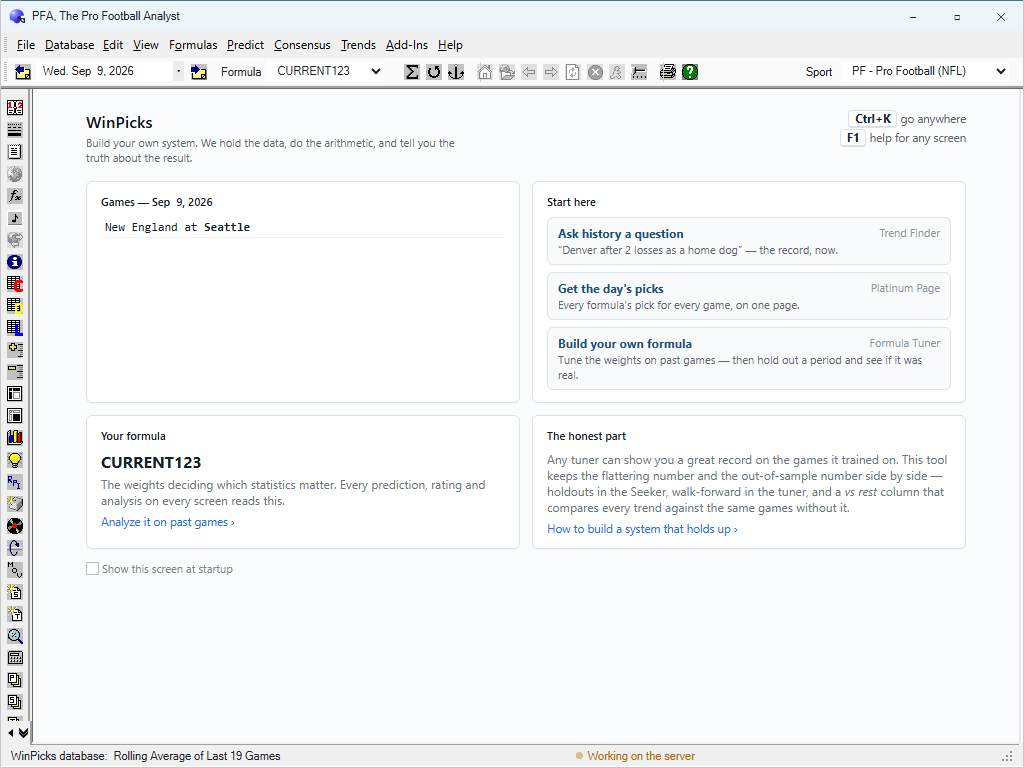
Figure 3.2 - The Home Page (PFA)
At the top left, under the WinPicks title, the page states what the program is for, in its own words: "Build your own system. We hold the data, do the arithmetic, and tell you the truth about the result." At the top right sit two shortcuts, printed here because they work everywhere: Ctrl+K opens a command palette that jumps to any screen by name, and F1 opens help for any screen.
Below them, four cards:
- Games - the slate for the date you are browsing, with the date in the card's heading; in the off-season it shows the last date that was played, labelled as such. In Figure 3.2 it is one September game, New England at Seattle.
- Start here - three actions. Each card leads with what you would do, names the screen that does it at its right edge, and explains itself in a line: Ask history a question opens the Trend Finder ("Denver after 2 losses as a home dog" - the record, now); Get the day's picks opens the Platinum Page (every formula's pick for every game, on one page); Build your own formula opens the Formula Tuner (tune the weights on past games, then hold out a period and see if it was real).
- Your formula - the formula currently loaded, CURRENT123 in the figure, with a reminder of what it is: the weights deciding which statistics matter, read by every prediction, rating and analysis on every screen. The link underneath - "Analyze it on past games" - runs the Analyze report on it directly.
- The honest part - the program's habit, stated as a promise: any tuner can show you a great record on the games it trained on, so this one keeps the flattering number and the out-of-sample number side by side. The link
- "How to build a system that holds up" - opens the help guide on exactly that.
A checkbox at the bottom - "Show this screen at startup" - controls whether Home greets you when you sign in. With it off, WinPicks opens onto the main window, the way the original program did.
The Tool Bar
WinPicks Reference Manual Section 3.2. The Tool Bar
In addition to the menus, WinPicks includes a tool bar that lets you select some functions without using menus. All you have to do is click on the tool bar icon. The table below describes what each icon does. The toolbar in WinPicks 2.0 is fixed - the original program let you add and remove buttons; this build ships one toolbar for everybody, so the layout described here is the layout you are looking at. Buttons whose destination no longer exists are greyed out with the reason on hover, rather than removed: a button you remember stays where you remember it, and tells you what became of it.
| Tool Icon | Name | Function |
|---|---|---|
 | Enter Playoff Schedule | Opens the schedule, which is maintained automatically in WinPicks 2.0 |
 | Enter Lines and Totals | Opens the lines folder; lines now arrive on their own (see section 6) |
 | Enter Games | Opens the game scores screen; results now arrive on their own (see section 5) |
 | My Formulas | Create, modify, delete, and activate formulas |
 | Formula Tuner | Tunes prediction formulas for best results |
 | Formula Warehouse | Opened the Formula Warehouse, which has closed; the button is greyed out |
 | Download Stats from Internet | Downloaded stat and line files; data now arrives on its own, and the button is greyed out |
 | Print the information on screen, through your browser's print dialog | |
 | View Team Info | View the database of the selected team |
 | View Stats by Category | View statistics in a specific category (PFA only) |
 | View Stats by Team | View statistics of a specific team (PFA only) |
 | View Stat Charts | View a graphic of a selected statistic (PFA only) |
 | View Points Scored | Rank teams according to points scored (CFA, PBA, CBA) |
 | View Points Allowed | Rank teams according to points allowed (CFA, PBA, CBA) |
 | View Standings by Division | View Standings Grouped by Division |
 | View Standings by Conference | View Standings Grouped by Conference |
 | View Standings by League | View Standings with All Teams on One List |
 | Power Ratings (formulas) | Display power ratings using current formula |
 | Power Ratings (RPI) | Display power ratings using RPI |
 | Records | Display records for all teams in database |
 | Average Margin of Victory | Display average margin of victory for all teams |
 | Predict Sides | Predict winners straight-up and against the spread |
 | Predict Totals | Predict winners against the total (over/unders) |
 | Analyze season | Analyze single formula for current season |
 | Consensus Sides | Predict ATS winners using multiple formulas |
 | Consensus Totals | Predict totals using multiple formulas |
 | Consensus Straight Up | Predict straight up winners using multiple formulas |
 | Consensus Analyze Year | Analyze multiple formulas for current season |
 | Line Shifter | Increment lines to see how recommended picks change |
 | Team History | Display trend history for selected team |
 | Key Trends | Displays key trends that relate to the selected date |
 | Situation Analysis | Displays trends that relate to the selected game |
 | Trend Seeker | Searches through past games and compiles a list of trends |
 | Watch List | Displays the trend list compiled by Trend Seeker |
 | My Trends | Displays the trend list stored using My Trends |
 | Trend Alerts | Scans upcoming games against Watch List, and reports on games that match the trends |
 | My Trends Alerts | Scans upcoming games against My Trends List, and reports on games that match the trends |
 | Power Rating Charts | Graphically display a team's power rating over time |
 | Schedule Difficulty | Display schedule difficulty for all teams in database |
 | Turnovers | Display turnover data for all teams (PFA only) |
 | Pool Picks | Ranks picks for football pools (PFA only) |
 | Analyze N Dates | Analyze prediction formula using a selectable number of past dates |
 | Help | Displays the on-line help function |
 | Rolling Average | Select a rolling average database |
 | Season to Date | Select a season-to-date database |
 | Fixed at Date | Select a fixed-at-date database |
 | Next Date | Advance to the next date in the database |
 | Previous Date | Go back to the previous date in the database |
 | WinPicks Forum | Opened the WinPicks forum at ScoresLine.com, which is no longer running; the button is greyed out |
 | ScoresLine.com | Opened the ScoresLine.com web site, which is no longer running; the button is greyed out |
 | Browse Back | For the built-in web browser, which has been retired; the button is greyed out |
 | Browse Forward | For the built-in web browser, which has been retired; the button is greyed out |
 | Refresh Page | For the built-in web browser, which has been retired; the button is greyed out |
 | Stop Browser | For the built-in web browser, which has been retired; the button is greyed out |
 | Enter a Web Address | For the built-in web browser, which has been retired; the button is greyed out |
Live Scores
WinPicks Reference Manual Section 3.3. Live Scores
While games are being played, a strip across the top of the Predict screens (SIDES, TOTALS and STRAIGHT UP) and the Platinum screens shows every game in progress, with the score as it stands. It is on by default.
The strip has two settings, because "not now" and "not at all" are different requests. The minimize control on the strip collapses the game cards and leaves a single line reporting how many games are live. LIVE SCORES on the VIEW menu turns the strip off altogether; select it again to bring it back. Both choices are remembered by this browser, not by your account, so they follow the machine rather than you.
← Installing and Starting WinPicks Contents Selecting a Database →