Predicting Games
WinPicks Reference Manual Section 8. Predicting Games
In previous sections, we've shown you how to keep all members of the WinPicks software family up to date, and how to view, print, and graph stats from the database. In this section, we'll show you how WinPicks can use the information stored in its database to accurately predict winners and beat the point spread.
This section covers the following topics:
- 8.1 - General Information about Prediction Formulas
- Forge: Designing a Formula from a Question
- 8.2 - Using Prediction Formulas
- 8.3 - Testing a Formula with Different Databases
- 8.4 - Analyzing a Prediction Formula
- 8.5 - Tuning a Prediction Formula for Best Results
- Tuning Against Closing Line Value
- Formula Inputs: Choosing the Statistics a Formula Uses
- Holding Out a Period, and Reading the Luck Line
- 8.6 - Sharing Formulas: The Formula Warehouse
- 8.7 - Predicting Sides (Straight-Up and ATS)
- Predicting Straight Up
- Predict Agents: Formulas That Reason
- 8.8 - Predicting Totals (Over/Unders)
- Prices on the Predict Screens
- 8.9 - Making Pool Picks
- 8.10 - Making Detailed Predictions
- 8.11 - Making Single Game Predictions
- 8.12 - Making Consensus Predictions
- 8.13 - NightShift Formula Tuner
- 8.14 - The Platinum Page
- 8.15 - Show all Platinum Picks
- 8.16 - Analyze Platinum Picks
- 8.17 - Line Shifter
General Information about Formulas
WinPicks Reference Manual Section 8.1. General Information About Prediction Formulas
WinPicks is very versatile. It doesn't force you to use a predefined handicapping method. Instead, you can design your own prediction formulas and instantly analyze their performance.
Predictions are based on the stats that are currently in the database. For example, if your database uses a 3-game rolling average, the predictions are based on the stats from the past 3 games. To change the stats included in the database, or to see which stats are currently included, please see Section 4.
Each member of the WinPicks family includes at least three prediction formulas that have worked well in past seasons. However, there is no limit to the number of formulas you can use, so you can create and test as many formulas as you wish. In fact, you can even use a consensus method that lets you use as many prediction formulas as you want at the same time!
WinPicks allows you to analyze the performance of a formula, fine tune a formula for best results, or even share formulas with other WinPicks users.
Forge: Designing a Formula from a Question
Forge is a front door to formula design for people who did not use the original program. Choose Add-Ins > Forge - Formula Designer. Like the SureLock Formula Wizard it supersedes, Forge is part of Pro Football Analyst. The screen is shown in Figure 8.19.
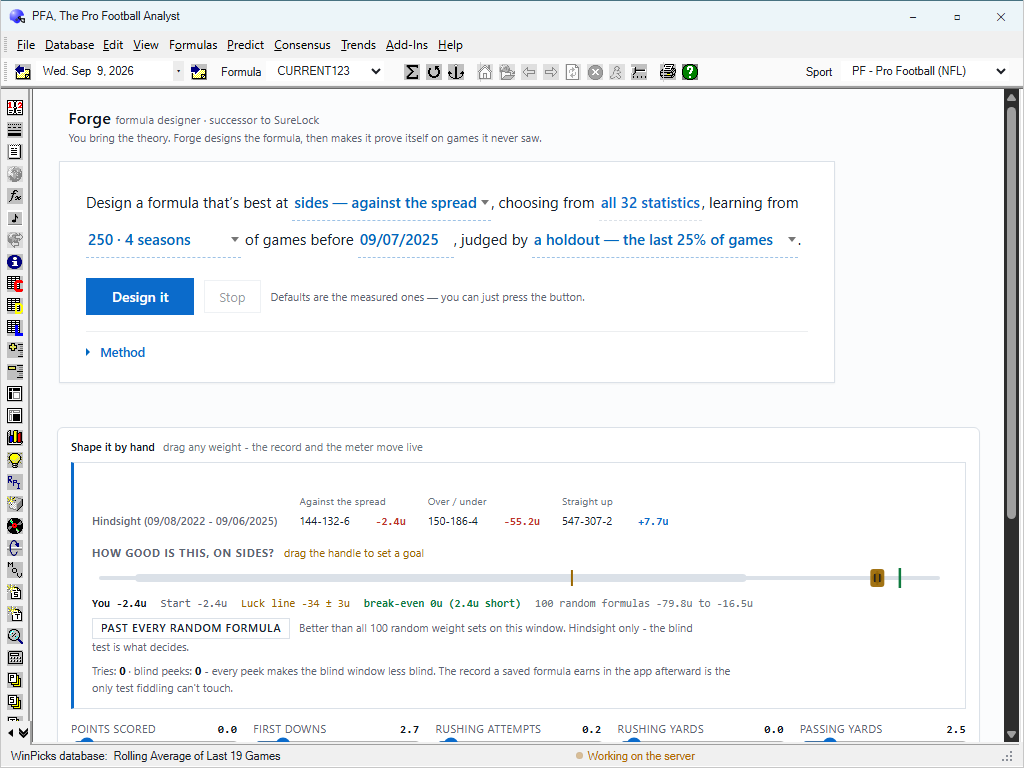
Figure 8.19 - The Forge Screen (PFA)
The original SureLock asked its questions across nine wizard screens. Forge asks them in one sentence, printed across the top panel with the choices underlined - read it off Figure 8.19:
Design a formula that's best at sides - against the spread, choosing from all 32 statistics, learning from 250 - 4 seasons of games before 09/07/2025, judged by a holdout - the last 25% of games.
Each underlined phrase is a control:
- Best at decides the objective: sides, totals or straight up. This is the decision SureLock's "Sides or Totals" screen asked, plus the straight-up choice that only makes sense now that real money lines are in the database.
- Choosing from decides the ingredients. "All 32 statistics" lets the design pick freely from everything Pro Football Analyst tracks.
- Learning from is the sample - the figure's 250 games is about four seasons - and before sets the cutoff date, so the design never sees anything after it.
- Judged by is the part SureLock never had: a holdout - the last 25% of games. Forge fits on the earlier games and scores on the last quarter, which the fit never saw. Turned off, you have reproduced 1998: the reported record and the design come from the same games, and the number is a compliment the formula pays itself.
Press DESIGN IT and Forge builds the formula; STOP halts a run. The note beside the buttons is the short version of this section: the defaults are the measured ones - you can just press the button. A METHOD expander underneath explains, in the screen's own words, how the design run works.
What comes back is an ordinary formula - weights in the same slots the formula editor shows - and the number to look at is the holdout number, because it is the only one the design could not court.
Shape it by hand. The lower panel in Figure 8.19 is the same honesty applied to manual work. The row of weights along the bottom (POINTS SCORED, FIRST DOWNS, RUSHING ATTEMPTS, and the rest) can each be dragged, and the record and the meter move live as you drag.
The Hindsight line names itself honestly: over the window in the figure (09/08/2022 to 09/06/2025) the current weights went 144-132-6 against the spread for -2.4 units, 150-186-4 on totals for -55.2 units, and 547-307-2 straight up for +7.7 units. Hindsight, because every one of those games was visible while you dragged.
The meter under "HOW GOOD IS THIS, ON SIDES?" places your current units figure on one scale beside four fixed marks, and the figure's own values show how to read them:
- You -2.4u and Start -2.4u - where you are and where you began; nothing has been dragged yet, so they sit together.
- Luck line -34 +/- 3u - what random weight sets reach on this window. It is deeply negative because random picking pays the vig on every bet; merely beating it means little more than "better than throwing darts".
- break-even 0u (2.4u short) - the mark that matters for money, with the distance to it spelled out.
- 100 random formulas -79.8u to -16.5u - the full range one hundred random weight sets spanned on this same window. The badge "PAST EVERY RANDOM FORMULA" lights when you clear all of them - necessary, and nowhere near sufficient.
Under the meter, two counters: Tries and blind peeks. Every peek at the held-out games makes the blind window less blind - adjust, peek, adjust, peek, and you are fitting the holdout by hand. The counter keeps the honest score of how blind the blind test still is, and the record a saved formula earns in the app afterward is the only test that fiddling cannot touch.
From Forge to the rest of the program. A sensible first pass: press DESIGN IT with the defaults; read the holdout number, not the fit; if it holds, save, and the formula appears on MY FORMULAS like any other. Run ANALYZE THE CURRENT FORMULA over seasons the design never learned from, and let the Formula Tuner refine the weights later if you wish - with its own Track out-of-sample ticked, for the same reason. If instead you have a theory of your own, start from Shape it by hand, and treat the meter's marks as the standard of proof: past the luck line, past the random field, past break-even, and only then interesting.
Everything Forge produces is an ordinary formula file; there is no separate Forge format and nothing it makes is locked to it. It is a convenience, not a different engine: a formula Forge writes and a formula you build by hand are graded identically, by the same code, at the same prices.
Using Prediction Formulas
WinPicks Reference Manual Section 8.2. Using Prediction Formulas
Prediction formulas are easy to make and use. This section explains how to load, create, delete, modify, and view prediction formulas.
The My Formulas Screen
You don't have to create your own prediction formulas. Each member of the WinPicks family comes with at least three ready to use formulas. These formulas have worked well in past seasons, and you'll probably be pleased with their accuracy.
Your prediction formulas are managed using the MY FORMULAS screen. To get to this screen, select MY FORMULAS from the FORMULAS menu, or click the MY FORMULAS icon, or press the F9 key. You'll see a screen similar to Figure 8.20:
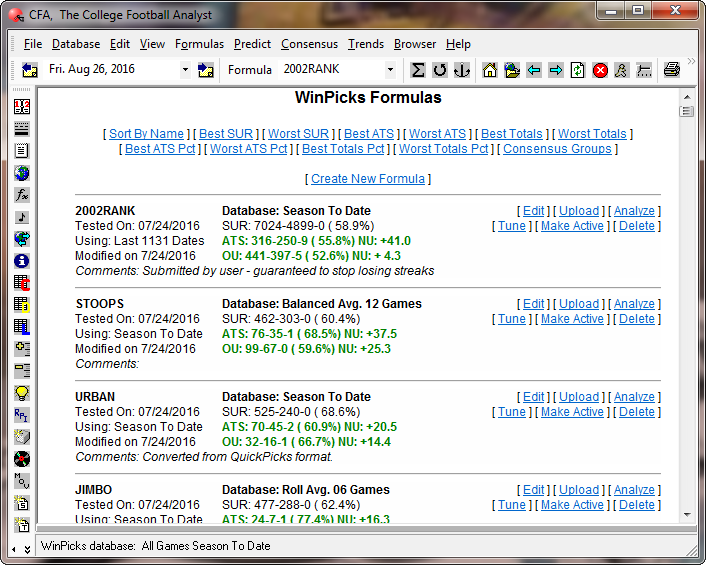
Figure 8.20 - The My Formulas Screen (CFA)
The formulas listed on the MY FORMULAS screen are sorted according to a method that you can select by clicking on the text links at the top of the screen. There are 11 different ways you can sort your formula list: by name, by best straight-up record (SUR), by worst SUR, by best against the spread (ATS) record, by worst ATS record, by best totals (over/under) record, by worst totals record, by best ATS percentage, by worst ATS percentage, by best totals percentage, and by worst totals percentage. By changing the sort method, you can explore your list of formulas and quickly find the formula that you want to find. There is also a text link on the MY FORMULAS screen that allows you to see each of your consensus formula groups, and the individual formulas within the group.
The MY FORMULAS screen contains the following information about each formula:
- The Formula Name - All formulas are stored in individual files. The screen doesn't show the file extension for the formula, but all members of the WinPicks family use unique file extensions to identify their formulas. The file extension for pro football formulas is PFF; college football formulas use CFF, pro basketball formulas PBF, and college basketball formulas CBF.
- The Database Method - This column lists the database method used by the formula. This information is stored inside the formula, and whenever you load a formula, it automatically selects its database method. This database method is used until you change it.
- The date when the formula was last modified.
- The date when the formula was last tested.
- The Formula's Record - The formula's straight-up (SUR), against the spread (ATS), and over/under (OU) records are shown, along with the number of net units the formula has won or lost for ATS and OU selections. These records were tabulated on the date when the formula was last tested. Whenever you start WinPicks, it will remind you to test formulas that have not been tested within the last three days. If you take advantage of these reminders, the formula records will be up to date, or nearly up to date.
- Comments - The line in italics contains comments about the formula. This line is optional, and is not included in all formulas. However, it can be used to credit the author of the formula, to provide historical information about the formula, or to provide tips or reminders on how to use the formula.
Loading Formulas
The MY FORMULAS screen lists all of the available formulas. To load a formula, select the formula that you wish, then double click the mouse or click the MAKE ACTIVE button. Or, use the box on the toolbar to select a formula.
Whenever you run WinPicks, it remembers the last formula that you used, and automatically loads the formula for you. It will continue to use the formula until you select another one.
Importing Formulas from the Original Program
If you ran WinPicks on your own PC, your formula files still work. Choose File > Import Formulas. The window shown in Figure 8.24 appears.
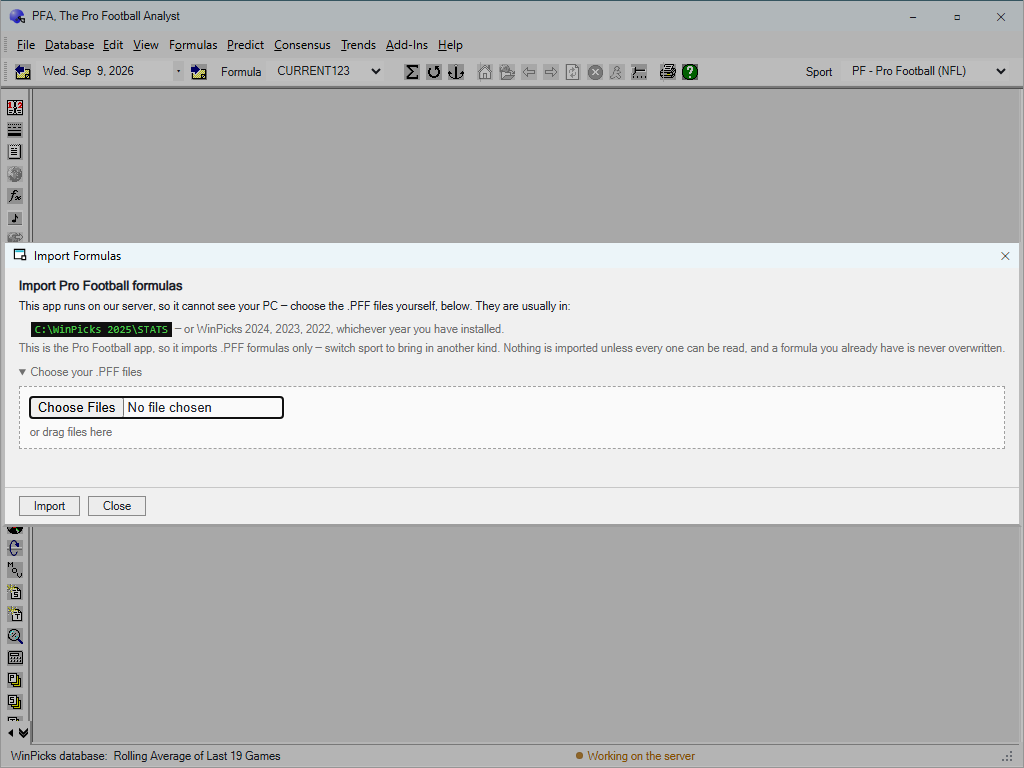
Figure 8.24 - The Import Formulas Window (PFA)
WinPicks 2.0 runs on our server, so it cannot look through your disk itself: choose the files yourself with the CHOOSE FILES button, or drag them onto the window. They are usually in a folder like C:\WinPicks 2025\STATS - or WinPicks 2024, 2023, 2022, whichever year you last installed. Each package imports its own kind - .PFF files in Pro Football Analyst, the matching extension in each other sport - so switch sports to bring in another kind. Nothing is imported unless every chosen file can be read, and a formula you already have is never overwritten. Imported formulas appear on the MY FORMULAS screen under your account, exactly as if you had created them here.
Creating Formulas
To get the most value from WinPicks, you should create your own formulas. Your formulas might outperform ours. Plus, you'll get the satisfaction of using a method that you developed yourself.
To get started, click on the CREATE NEW FORMULA text link near the top of the MY FORMULAS screen. You are then asked to enter a name for the new formula. Enter a name for the formula then click the OK box or press ENTER. There is no limit to the length of formula names, but to prevent on-screen formatting problems, it is a good idea to limit them to 20 characters.
After you select a name, the formula editing screen will appear. The appearance of the formula editing screen (and the way you create formulas) depends upon the application you are using. However, some parameters are common to all the WinPicks applications (PFA, CFA, PBA, CBA, and PHA). The common parameters are:
- Home Field Advantage (Home Court Advantage in PBA and CBA, Home Ice Advantage in PHA) - This is the point spread advantage given to the home team. The default value is 3 points.
- Point Spread Multiplier - This number is multiplied by the original point spread to obtain a new point spread. It is initially set to 1. Enter a number greater than 1 to generate bigger point spreads, or a number less than 1 to generate smaller point spreads. For example, if the formula predicts a point spread of 4 with the multiplier set to 1, it becomes 6 with the multiplier set to 1.5 (4 x 1.5 = 6). By adjusting the Point Spread Multiplier, you can fine tune a formula to get the best possible results.
- Lower Betting Window Limit & Upper Betting Window Limit - These two parameters set the betting window and determine how many picks WinPicks will recommend. The betting window refers to the difference between predictions made by WinPicks, and the actual betting line. For example, if the betting window is set at 1 to 7 points, WinPicks recommends picks when the actual line differs from the WinPicks line by 1 to 7 points. The lower and upper bounds of the betting window are set using the parameters named Lower Betting Window Limit and Upper Betting Window Limit. The default betting window range is 1 to 10 points. If you increase the window, WinPicks recommends more picks. If you decrease the window, WinPicks recommends fewer picks.
- Default Database - You must select the database method that your formula will use. WinPicks will load the selected database each time the formula is activated. Keep in mind that if you change the database method (from the DATABASE menu or the toolbar) it will override the formula setting.
- Default Test Method - The "Default Test Method" is the number of dates (going back) a formula will be tested with using ANALYZE ALL FORMULAS on the FORMULA menu and the "Analyze" link on the MY FORMULAS screen. When set to "Season To Date", WinPicks will always show a formula's results for the current season only. When set to "Last n Dates", WinPicks will always show the results using the exact number of dates set. The "Default Test Method" is used by WinPicks to rank the best formulas on the MY FORMULAS screen. Note that the ANALYZE THE CURRENT FORMULA menu option will let you override this setting and try a different range of dates, but ANALYZE ALL FORMULAS and the "Analyze" link always use the default test method when testing a formula.
- Exclude from Platinum Picks - Check this box if you want the formula to be excluded from the Platinum Picks calculations. All formulas will be used by default unless this box is checked.
- Situation Filter - If you enable the situation filter (by checking the box), you can make a formula that only generates predictions in certain situations. Four different situations can be chosen. Two of them, the "Month" and "Day of Week" settings, are self explanatory. For example, you can create a formula specifically for NFL Monday night football that only makes predictions for Monday night games. The "Underdog" situation setting allows you to limit the formula to making predictions when either the home or away team is the underdog. The "Game Type" situation setting allows you to limit the formula to making predictions on division, conference, nonconference, or postseason games. This can be very powerful, because you might find that college football and basketball formulas tailored for conference games only can do especially well. You can also combine settings so that your formula only makes predictions when specific situations occur, for example, when a team is a home dog in a conference game.
The remaining parameters are different for each member of the WinPicks family. Therefore, we need to explain each type of formula separately, beginning with the formulas used by PFA.
Creating Formulas with Pro Football Analyst (PFA)
The formula editing screen for PFA (Figure 8.21) includes all the statistical categories tracked by PFA. The statistical categories are listed in the column labeled Parameter Name. You can move around the formula editing screen using the arrow keys or the mouse. Each category starts out with a 0 in the column labeled Value. The value assigned to each statistic is the percentage weight that the formula will place on that particular statistic. For example, if you enter a value of 20 for points scored, predictions are based 20% on points scored, and 80% on other statistics.
If the percentage weight is left at 0, the statistic will not be used by the formula. To use a statistic in your formula, you simply assign it a non-zero percentage weight by keying in the number you want to use.
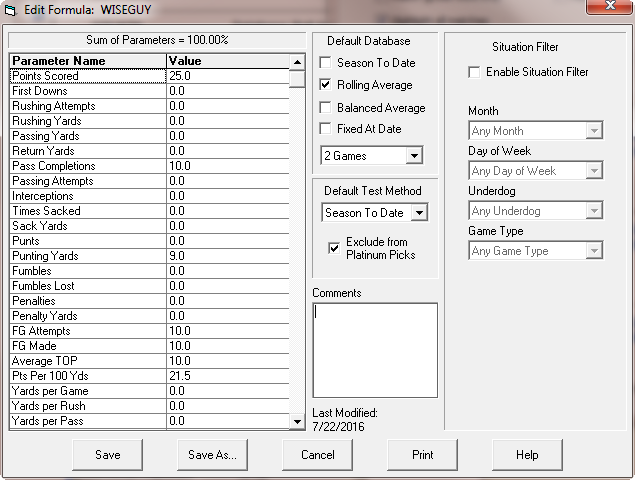
Figure 8.21 - The Formula Editing Window for PFA
It is OK to use just a few stats in your formulas. Some stats (yards per game, points scored, points per 100 yards, winning percentage, and so on), are very important, and are assigned a high weight in many successful formulas. Other stats (punting yards, field goals attempted, return yards, and so on), are normally considered to be less important. They are usually assigned a low weight or are not used at all. At the top of the formula entry window, you'll see a number called the Sum of Parameters. This number must equal 100% before you can save the formula.
The last four items on the parameter list (Home Field Advantage, Point Spread Multiplier, Lower Betting Window Limit, and Upper Betting Window Limit) are common to all formulas and are discussed earlier in this section.
And finally, before saving the formula, you may want to type a comment in the Comments box. Adding a comment is optional, but you will probably find them useful, especially if you create a large number of formulas. When you are finished with the formula:
- Click the SAVE button to save (and load) the formula
- Click the CANCEL button to quit without saving
You can also have a formula designed for you. Forge, found under the ADD-INS menu, builds a complete prediction formula from a question - which market, over what period, judged on what - and everything it produces is an ordinary formula that you can edit and tune like any other. Forge replaces the SureLock Formula Wizard of earlier versions; see Forge: Designing a Formula from a Question, earlier in this section.
Creating Formulas with College Football Analyst (CFA) or College Basketball Analyst (CBA)
The formula editing screen for CFA is shown in Figure 8.22:
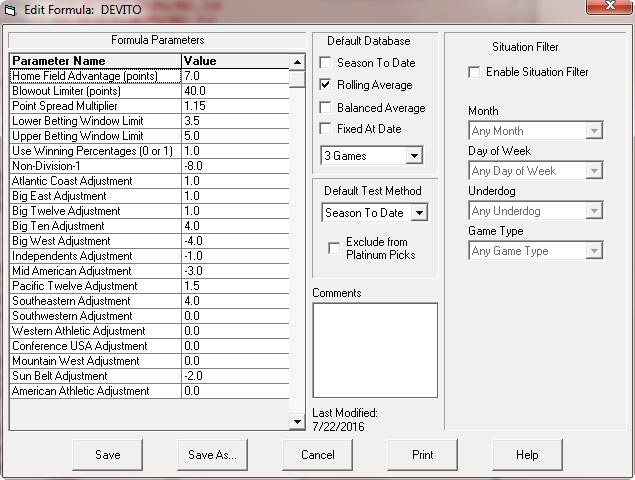
Figure 8.22 - The Formula Editing Window for CFA
CFA and CBA formulas are based on average margin of victory, winning percentage, and the relative strength of the Division-1 conferences. The formula editing screen for CFA has a column labeled Parameter Name and a column labeled Value. Four items on the parameter list (Home Field Advantage, Point Spread Multiplier, Lower Betting Window Limit, and Upper Betting Window Limit) are common to all formulas and are discussed earlier in this section. The remaining parameters are:
- Blowout Limiter - This number limits the significance of "blowouts", or games with one-sided scores. For example, if the blowout limiter is set to 20 (the default value), games decided by more than 20 points are given the same significance as games with a 20-point margin. In other words, if a football team wins by 70-0, the formula will assign it the same significance as a 20-0 victory. This feature prevents teams who run up the score from having an inflated power rating.
- Use Winning Percentages - To turn this option on, enter a 1. To turn it off, enter a 0 (the default). If "Use Winning Percentages" is turned on it enhances the power ratings of teams that win a high percentage of their games. Power ratings that do not take winning percentage into account will often give high ratings to teams that seldom win if they have played a tough schedule. By the same token, teams that almost always win may be ranked low if they have played a weak schedule. However, winning is often a habit for good teams (even when they play poorly), and losing is often a habit for bad teams (even when they play well). For this reason, you might want to take winning percentage into account.
- Conference Adjustments - You also need to enter a positive or negative point spread adjustment for each conference. All are set to 0 by default, but every handicapper knows that a victory over a Big 10 school has more significance than a victory over a non Division-1 school. You should add some additional points to the strongest conferences, and perhaps take points away from the weaker ones by entering negative numbers. The INTER CONFERENCE RECORDS feature provides a clear picture of the relative strength of the conferences.
And finally, before saving the formula, you may want to type a comment in the Comments box. When you are finished with the formula:
- Click the SAVE button to save (and load) the formula
- Click the CANCEL button to quit without saving
Creating Formulas with Pro Basketball Analyst (PBA)
The formula editing screen for PBA is shown in Figure 8.23:
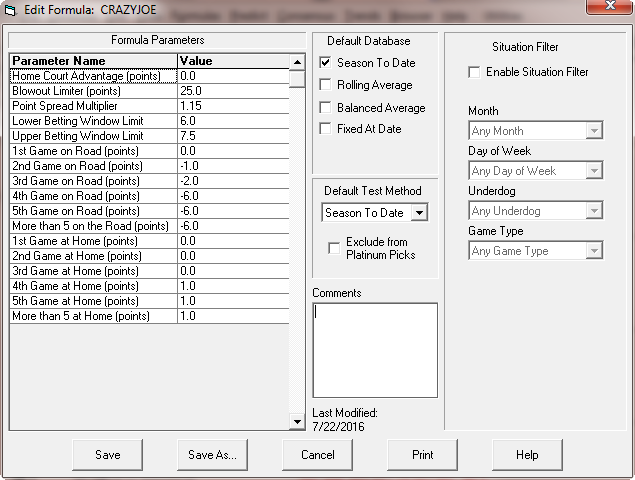
Figure 8.23 - The Formula Editing Window for PBA
PBA formulas are based on average margin of victory, winning percentage, and the length of time that a team has spent at home or on the road. The formula editing screen for PBA has a column labeled "Parameter Name" and a column labeled "Value". Four parameters (Home Court Advantage, Point Spread Multiplier, Lower Betting Window Limit, and Upper Betting Window Limit) are common to all formulas and are discussed earlier in this section. The remaining parameters are:
- Blowout Limiter - This number limits the significance of "blowouts", or games with one-sided scores. For example, if the blowout limiter is set to its default value of 20, games decided by more than 20 points are given the same significance as games with a 20-point margin. In other words, if a team wins by 134-88, the formula will assign it the same significance as a 99-79 victory. This feature prevents teams who run up the score from having an inflated power rating.
- Weariness and Rest Adjustments - These parameters allow you to select the advantage (or disadvantage) given to a team when they are playing at home or on the road. For example, an NBA team that has played several in a row on the road is at a distinct disadvantage when playing a team that has been at home for the past few games. You can assign positive or negative point spread adjustments based on the number of consecutive games a team has played during a home stand or road trip. For example, if you assign a value of -5 to "5th Game on Road", the formula will assume that the road team has a 5 point disadvantage due to the weariness caused by playing 5 consecutive road games. Likewise, if you assign a value of 5 to "5th Game at Home", the formula assumes that the home team is well rested due to the long homestand and gives them a 5 point advantage.
And finally, before saving the formula, you may want to type a comment in the "Comments" box. When you are finished with the formula:
- Click the SAVE button to save (and load) the formula
- Click the CANCEL button to quit without saving
Modifying a Formula
You can modify any formula, including those included with WinPicks. To do so, click the EDIT link near the name of the formula that you want to modify on the MY FORMULAS screen, or select EDIT CURRENT FORMULA from the FORMULAS menu (the F4 key) to edit the formula that is now loaded. The formula editing screen will appear, and you can make your changes. After you finish making changes, save the formula by clicking the SAVE button, or click the SAVE AS button to save the formula with a different name. If you decide not to modify the formula, click the CANCEL button.
Deleting Formulas
To delete a formula, click the DELETE link near the name of the formula on the MY FORMULAS screen. Select if you really want to delete the formula, or if you have changed your mind. Keep in mind that you cannot delete the formula that is currently in use.
Analyzing Formulas
To quickly analyze a formula, click the ANALYZE link near the name of the formula on the MY FORMULAS screen. When the analysis is finished, a summary of the results is shown on screen. This analysis provides the same overall results as the ANALYZE THE CURRENT FORMULA feature. However, unlike ANALYZE THE CURRENT FORMULA it only shows the total results, it does shows not the results by date.
To analyze all of your formulas at once, select ANALYZE ALL FORMULAS on the FORMULA menu. After the formulas are analyzed, you are returned to the MY FORMULAS screen where the results are summarized.
Uploading Formulas
Uploading belonged to the Formula Warehouse, which has closed, and the UPLOAD link has been retired with it (see section 8.6, Sharing Formulas: The Formula Warehouse). Formulas in WinPicks 2.0 are private to your account.
Viewing Formulas
You can view the contents of the active prediction formula by selecting FORMULA from the VIEW menu. When you are finished viewing the formula, close the window.
Testing a Formula with Different Databases
WinPicks Reference Manual Section 8.3. Testing a Formula with Different Databases
It is sometimes useful to see the performance of a prediction formula against different database settings. The TRY CURRENT FORMULA WITH DIFFERENT DATABASES option on the FORMULA menu lets you test the currently active formula using Season To Date, Rolling Average, and Balanced Average methods. The Rolling Average and Balanced Average methods go back to 30 games. You can test back to the beginning of your database, or for the current season only.
TRY CURRENT FORMULA WITH DIFFERENT DATABASES carries its own submenu: TEST USING LAST N DATES asks for the number of game dates to test against, and TEST SEASON TO DATE ONLY tries the formula with data from the current season only. When the formula has been tested, a report will be created similar to the one in Figure 8.30.
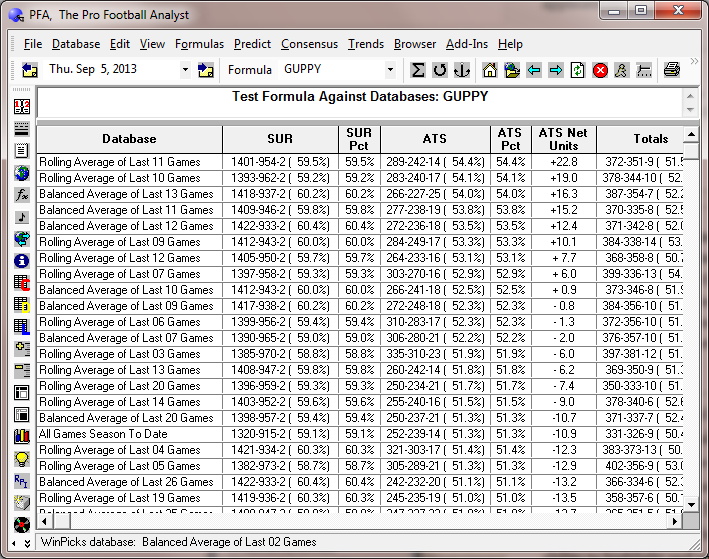
Figure 8.30 - Testing a Formula Against Different Databases (PFA)
The report shows how the formula did using each database setting. The columns on the report are similar to the ones found in ANALYZE THE CURRENT FORMULA screen. Click on the headings at the top of the columns to sort the columns and to see which database setting works best. For example, click on the heading "ATS Net Units" to rank the various database settings in that category.
Please note that testing a formula with different databases can take a long time if you go back several seasons or more.
Analyzing a Prediction Formula
WinPicks Reference Manual Section 8.4. Analyzing a Prediction Formula
You can analyze the straight-up record (SUR) against the spread record (ATS), and totals record (over/under) of any prediction formula. This feature allows you to monitor the performance of your prediction formulas, and to test new formulas before you use them.
To analyze a formula, select ANALYZE THE CURRENT FORMULA from the FORMULAS menu. Then, select TEST SEASON TO DATE ONLY to analyze all games from the current season. Select TEST USING LAST N DATES to analyze a formula over any number of past dates in the database. Select PAST SEASONS to pick a range of one or more past seasons to analyze. You can analyze the entire database by selecting a range that extends from the oldest to the current season.
Once you begin an analysis, you may stop it at any time. The Analyze Formula screen is displayed in Figure 8.40.
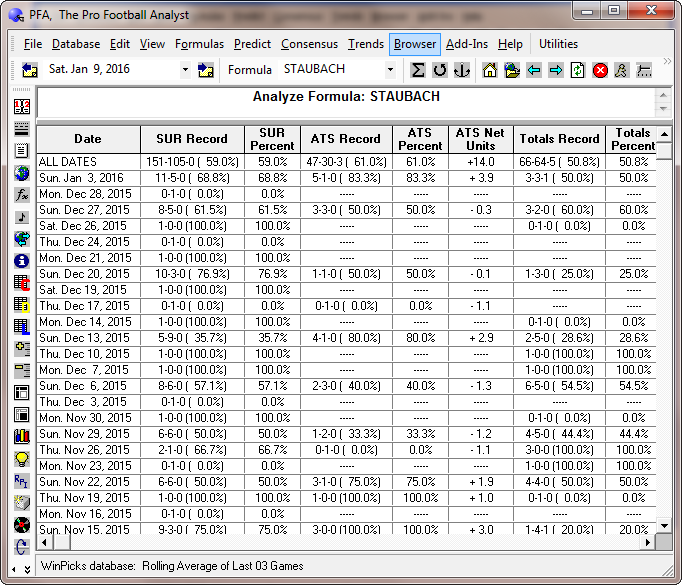
Figure 8.40 - The Analyze Formula Screen (PFA)
The ANALYZE FORMULA screen has eight columns:
- Date - This shows the schedule date for which the formula is being analyzed.
- SUR Record - This shows the formula's straight-up record for every game played.
- SUR Percent - This shows the formula's straight-up winning percentage for every game played.
- ATS Record - This shows the formula's record for the games that it recommended against the point spread.
- ATS Percent - This shows the formula's winning percentage for the games that it recommended against the point spread.
- ATS Net Units - This shows the number of net units that the formula has won or lost for the games it recommended against the point spread. Net units are calculated as plus 1 unit for every pick won, and minus 1.1 units for every pick lost. Formulas that would have won money when used for legal sports betting will show a positive value for net units, assuming that the same amount was wagered on every pick.
- Totals Record - This shows the formula's record for the games that it recommended against the totals line.
- Totals Percent - This shows the formula's winning percentage for the games that it recommended against the totals line.
- Totals Net Units - This shows the number of net units that the formula has won or lost for the games it recommended against the totals line. Net units are calculated as plus 1 unit for every pick won, and minus 1.1 units for every pick lost. Formulas that would have won money when used for legal sports betting will show a positive value for net units, assuming that the same amount was wagered on every pick.
The top line in the grid shows the formula's cumulative record for all of the dates being analyzed. When you evaluate formulas, keep in mind that an SUR of 65% or better is very good, and that 70% is excellent. An ATS or totals record of 52.4% is required to break even if you are using the formula for legal sports betting. An ATS or totals record of 55% or better is very good, and anything over 60% is excellent.
It is important to note that formulas with a good ATS record may not do well on totals, and vice versa. If you use Forge, you choose at the start whether the formula you create is aimed at the spread or at the totals line.
ANALYZE is a very powerful tool. It allows you to measure the quality of a prediction formula by looking at its past results.
Analyze All Formulas
Selecting this option will analyze all of your formulas at once. If you have a lot of formulas, this can take a few minutes or longer. After the formulas are analyzed, you are returned to the MY FORMULAS screen where the results are summarized.
Formula Analysis SUR Filter
Selecting this option from the FORMULAS menu will allow you to limit the games included in the straight-up record (SUR) analysis of a prediction formula. The points spread range is selectable from 1 to 25 points, or you can select all games (the default setting). This feature provides a more realistic look at a formula's ability to pick up straight winners, because you can filter out those "obvious" winners where the spread is more than 25 points. You can also limit the SUR analysis to games that are most likely to have a money line - for example, where the spread is 15 points or less, to find the formulas that work best for money line wagers. The Formula Tuner will tune SUR formulas based on this setting, so you can tune a formula to pick SUR winners in games with small point spreads.
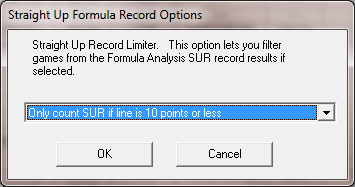
Figure 8.41 - The Formula Analysis SUR Filter Window
Tuning a Prediction Formula for Best Results
WinPicks Reference Manual Section 8.5. Tuning a Prediction Formula for Best Results
The Formula Tuner can tune any prediction formula and improve the results. You can start the Formula Tuner from the MY FORMULAS page, using the link called "Tune" to the right of each formula name. You can also select FORMULA TUNER from the FORMULAS menu to tune the active formula, or click the

button on the toolbar.
Most of the formula equations in WinPicks are non-linear. Finding a mathematical solution for optimizing a formula is difficult (if not impossible). Pro Football Analyst also includes Forge, which designs a formula from scratch by choosing which statistics to use as well as their weights. Forge and the Formula Tuner are complements rather than rivals: Forge decides what belongs in a formula, and the Tuner adjusts the weights of a formula that already exists. The Tuner works in all five sports.
Instead of using mathematical equations to solve for the best combination of formula values, the Tuner uses a Monte Carlo technique that randomly varies the numbers, testing the results along the way. When it finds a better result, it remembers the new formula values, and continues to run with new random variations. The "Formula Tuner" runs continuously under your control, letting you tune a formula for a few minutes, a few hours, or even overnight. The "Formula Tuner" never gets tired, and continually tries to make a formula better. It can start with any formula, and in nearly all cases produce a better one.
The Formula Tuner Window
The Formula Tuner window is shown in Figure 8.50 below:
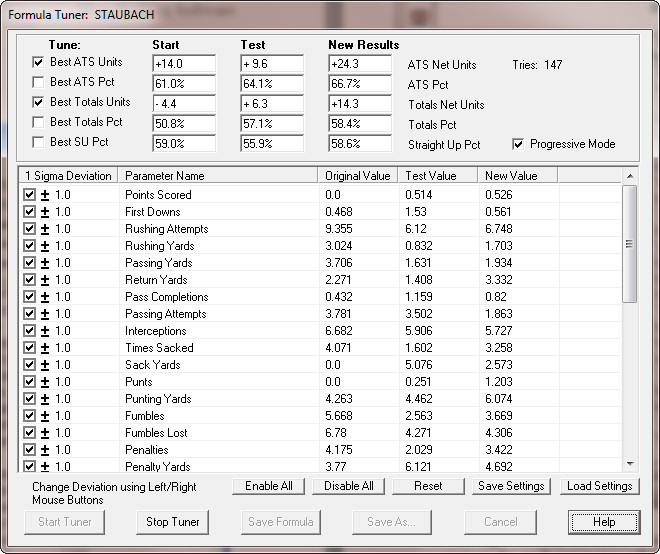
Figure 8.50 - The Formula Tuner Window
At the top of the "Formula Tuner" window, you can select the type of results you wish to tune. You can select one or more of these options:
- Best ATS Units - Tunes a formula to produce the highest number of against the spread net units
- Best ATS Pct - Tunes a formula to produce the highest winning percentage against the spread. If the tuner reaches 100%, it will continue to try to increase the number of net units.
- Best Totals Units - Tunes a formula to produce the highest number of net units against the totals line (over/unders)
- Best Totals Pct - Tunes a formula to produce the highest winning percentage for over/unders
- Best SU Pct - Tunes a formula to produce the highest percentage of straight-up winners
- Best SU Units - Tunes a formula to produce the highest number of straight-up net units, graded at each game's money line
Two further objectives, Best CLV ATS and Best CLV O/U, are described in Tuning Against Closing Line Value, below.
Listed to the right, there are three columns that show the results of testing the formula. The original results of the formula (before tuning) are displayed in the first column. The second column displays the results of the last test that the Formula Tuner attempted. The numbers in the second column change as the Tuner runs, on many computers a test lasts less than 1 second. The third column shows the results of the best formula the Tuner has found since it started running. A fourth column, Best O/S, fills in when Track out-of-sample is ticked, showing each objective's record on the held-out games (see Holding Out a Period, and Reading the Luck Line, below).
The "Progressive Mode" checkbox on the window tells the Tuner to add random variations to the best formula the tuner has found so far. If the "Progressive Mode" checkbox is not checked, the Tuner will always add random variation to the original formula every time. The progressive mode is turned on by default, and allows the "Formula Tuner" to "walk" away from the original formula values as it finds better combinations.
In the middle of the "Formula Tuner" window, every parameter in the formula is shown along with its starting value, the last value the tuner checked, and the new value from the best formula found so far.
The first column of the parameter window, labeled "1 sigma deviation", contains a checkbox which lets you to enable or disable each parameter from being tuned. By default all parameters are enabled, but you can disable a parameter if you do no want the value to change. You can enable or disable parameters before starting the "Formula Tuner" or while it is running.
To the right of each checkbox is a number indicating how many standard deviations the random variations for each parameter will be allowed to wander. The "Formula Tuner" generates random variations using a normal distribution within the one sigma (one standard deviation) range. However, while the tuner is running, you can use the left and right mouse buttons to increase and decrease the size of the range where the random variations will be allowed to occur.
There are a row of five buttons directly underneath the formula parameters window:
- Enable All - This button enables all formula parameters to be tuned, including those that were previously disabled.
- Disable All - This disables all parameters from being tuned, allowing you to turn all parameters off, and then turn on the ones you want, one by one using the checkboxes.
- Reset - This button changes all of the sigma values back to their standard value of one (one standard deviation).
- Save Settings - Clicking this button allows you to save the current formula tuner settings in a file. You are allowed to name the file, and store as many tuner parameter files as you wish. The formula settings that you save can also be used later with the NightShift Formula Tuner.
- Load Settings - Click this button to load a previously saved parameter file into the Formula Tuner.
To start tuning, click the "Start" button at the bottom of the window. Once running, you will see the results in the "Test Value" column update as the tuner searches for a better formula, and the number of tries is also updated in the window.
You can click the "Stop" button at any time to stop the tuner from running, and save the formula with the new values. The "Save" button will save the formula with the same name as before, or you can click the "Save As" button to save the formula with a new name.
After saving a formula, you can click the "Cancel" button to leave the "Formula Tuner" and to begin using your new formula.
Note that WinPicks will allow you to run multiple copies of the "Formula Tuner" by opening WinPicks in more than one browser tab. This allows you to get the most out of your available processing power. For example, you can open four tabs of College Basketball Analyst (CBA), each tuning a different formula. Or, you can tune formulas in the college and pro football packages simultaneously, with both tuners running at high speed.
Formula Inputs: Choosing the Statistics a Formula Uses
The original formulas were built from a fixed set of statistics - 32 in Pro Football Analyst. WinPicks 2.0 carries hundreds more for every game, and FORMULA INPUTS lets you put any of them into a formula.
Press the FORMULA INPUTS button on the Formula Tuner window, or the same button on the EDIT FORMULA screen. A picker lists every statistic in the feed, ranked by how strongly it has predicted the winning margin, with the ones that duplicate a statistic already in the formula marked so you do not count the same thing twice. Tick the ones you want and close the picker.
Each chosen statistic becomes an input to the formula. Its value for a game is the difference between the two teams' trailing ten-game averages, measured in standard deviations across the league, so a weight reads as points per standard deviation of advantage. The Tuner fits those weights exactly as it fits the original ones; an input you have not chosen is held at zero and left alone. The choices are saved beside the formula, so a formula that uses them carries them wherever it goes.
What is in the feed depends on the sport. Pro Football Analyst carries 260 box-score fields and 17 play-by-play measures for every game since 2002, including EPA per play and success rate. College Football Analyst carries its box score and play-by-play. Pro Basketball Analyst carries 26 box-score fields, and can direct inputs to the totals prediction as well as the margin. College Basketball Analyst does not have Formula Inputs: its formula's parameters are conference adjustments, and there is no room in the file for more.
The starter formulas for pro and college football that arrived with this release were built this way.
Tuning Against Closing Line Value
The tuner's objectives - best ATS units, best ATS percentage, and so on - all measure whether a formula's picks won. Closing Line Value measures something different and, over a short sample, more reliable: whether the formula was picking numbers the market later agreed with.
What CLV is. If you take a game at -3 and it closes at -4, you got half a point better than the closing number, whether or not the bet won. That is positive closing line value. A formula with a positive CLV is finding the same things the market finds, only earlier. A formula that wins while showing negative CLV has probably been lucky, and it will usually say so eventually.
Tuning for it. The Formula Tuner offers two extra objectives, Best CLV ATS and Best CLV O/U. Tick either and the tuner searches for weights that maximise line value rather than results. The figure is shown in points per bet, not units, because it is not a bankroll number: +0.42 means the average pick beat the closing number by four tenths of a point.
Figure 8.55 shows the Formula Tuner window as it stands in WinPicks 2.0, with everything this section and the next describe in one place.
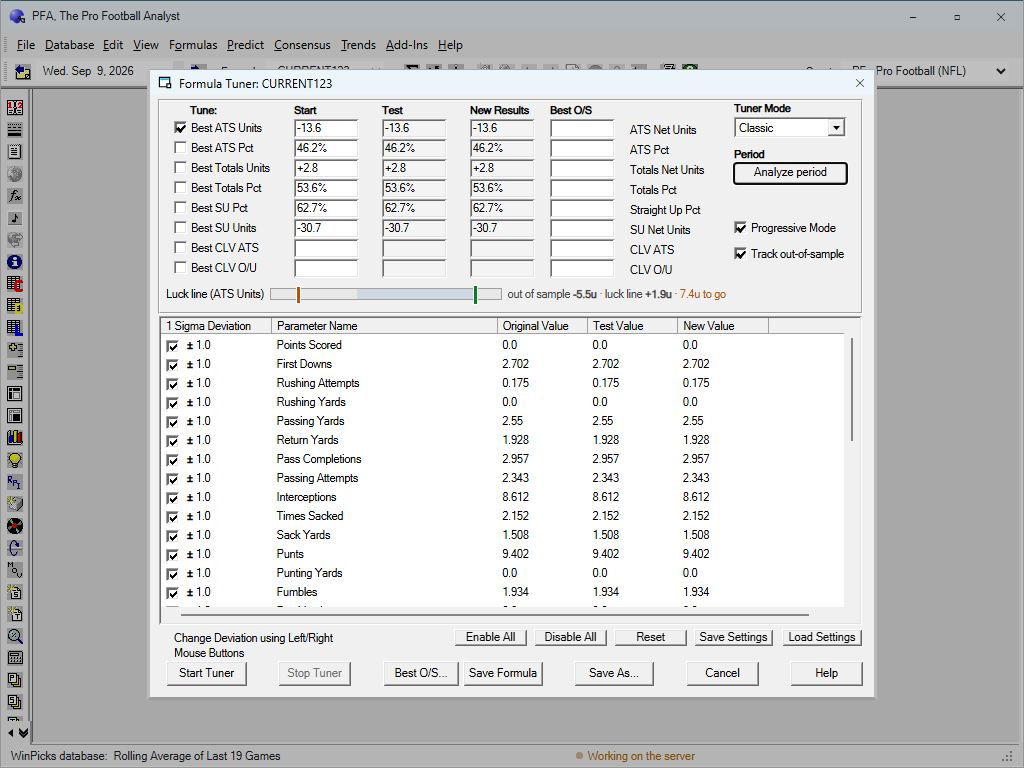
Figure 8.55 - The Formula Tuner, with the CLV Objectives and the Luck Line (PFA)
Reading Figure 8.55 from the top: the Tune panel lists all eight objectives - the five from section 8.5, Best SU Units, and the two CLV rows - each with its Start, Test, New Results and Best O/S columns. To the right sit the Tuner Mode list (Classic in the figure; Optuna is the other choice), the Period button that picks the dates to tune over, and the Progressive Mode and Track out-of-sample checkboxes. Under the objectives runs the Luck line strip - in the figure it reads "out of sample -5.5u, luck line +1.9u, 7.4u to go", which is the next section's subject. Below that, unchanged from section 8.5: the parameter grid with its deviation checkboxes, and the button rows - ENABLE ALL, DISABLE ALL, RESET, SAVE SETTINGS, LOAD SETTINGS; START TUNER, STOP TUNER, BEST O/S..., SAVE FORMULA, SAVE AS..., CANCEL and HELP.
When to use it. A season is a small sample, and a formula can post a flattering ATS record over eighty bets by luck alone. CLV over the same eighty bets is far harder to fake: to beat the close consistently you must know something before the market finishes knowing it, and there is no lucky way to do that eighty times.
The workflow. The order of operations matters more than the objective:
- Tune on CLV first. Tick Best CLV ATS (or CLV O/U), pick the period,
and let the tuner search for weights that find numbers the market later moves toward.
- Then check the results columns. A formula with positive CLV and a
decent ATS record is the real article: it beats the close, and the wins confirm it. Positive CLV with a mediocre record over a short stretch is often just early - the close agrees with the formula, and the bounces have not evened out yet. This is the one situation in handicapping where patience has arithmetic behind it.
- Distrust the reverse. A flattering ATS record with negative CLV is
the combination to walk away from, however good the percentage looks. It says the market moved against these picks after they were made, and the wins came anyway - which is a description of luck. Records like this are why the tuner shows both numbers side by side rather than letting either one speak alone.
- Hold the holdout to the same standard. CLV can be overfit like
anything else - the tuner is still keeping the best of thousands of tries. Track out-of-sample applies to the CLV objectives exactly as to the others (the Best O/S column in Figure 8.55 fills in for the CLV rows too), and the Luck Line strip is the same backdrop: a CLV headline that sits where a signal-free search reaches is the search, not the formula.
Reading the magnitude. The figure is points per bet against the closing number, so it compounds bet after bet in a way a percentage does not. Judge it the way you judge everything else in the tuner: against the Luck Line (what the same search fakes on noise) and against the held-out column (what survived on games the fit never saw) - not against a round number someone quotes in a forum.
What it needs. A game must have both an opening and a closing number on file for its CLV to be measurable. All five sports carry that pairing; where a particular sport's odds file does not, the tuner says so and ignores the objective rather than silently scoring zero.
Holding Out a Period, and Reading the Luck Line
Two features of the Formula Tuner exist to answer the same question: is this result real?
Track out-of-sample. Tick this and a second tuner runs beside the first, trained only up to a cutoff date, and records the best result it reaches on games the fit never saw. Nothing is selected on that number - the search is unchanged - it is simply kept, so that a good held-out block is not lost when it scrolls past. A formula that looks excellent in the fit and ordinary out-of-sample has been fitted to noise.
The Luck Line. The tuner keeps the best of many attempts, so its headline is a maximum over N draws and always flatters itself. The Luck Line is what the same search, at the same try budget, reaches when the outcomes carry no signal at all. If your result sits inside that band, the search found nothing; the number is what trying many times produces by itself. The strip in Figure 8.55 is this made visible: "out of sample -5.5u, luck line +1.9u, 7.4u to go" means the run's held-out result stands 5.5 units under water, and would need 7.4 more units just to reach what a signal-free search produces on its own.
It is a backdrop, not a gate. It never blocks a save, and it is not a substitute for out-of-sample - it tells you how much of the headline is the search rather than the formula.
Tuner modes. Classic works as the original program's tuner did. Optuna searches the same weights with a modern optimiser, which finds a good result in fewer tries on formulas with many parameters. Both honour the same objectives and the same held-out period.
The held-out controls. In Optuna mode a row of controls under the Luck Line sets how the holdout is scored: the number of held-out blocks (three by default), how the blocks combine into one figure (the mean less one standard deviation, the plain mean, or the worst block), and two dampers, Shrink and Robust, which trade a little of the headline for stability. The defaults are preselected; the further you loosen them, the better the fit looks and the less it tends to mean.
Best O/S. While out-of-sample tracking is on, a Best O/S... button sits beside Save. It shows the full held-out record - against the spread, totals and straight up - for the best out-of-sample candidate the run has found, and offers to save that formula rather than the in-sample winner.
Sharing Formulas: The Formula Warehouse
The Formula Warehouse was a MicroBrothers web page where customers uploaded formulas for others to download. It is no longer running, and the menu item that opened it is shown greyed out.
Formulas in WinPicks 2.0 are stored with your account rather than in a folder, so they follow you to any machine you sign in from. To work on a copy of a formula rather than the original, open it and use Save As under a new name - the starter formulas that ship with each package cannot be overwritten, which means you can always get back to a known starting point.
Predicting Sides (Straight-Up and ATS)
WinPicks Reference Manual Section 8.7. Predicting Sides (Straight-Up and ATS)
After you load a formula, WinPicks is ready to make predictions for the current date. To predict games both straight-up and against the spread (ATS), select SIDES from the PREDICT menu. The predictions appear as shown in Figure 8.70.
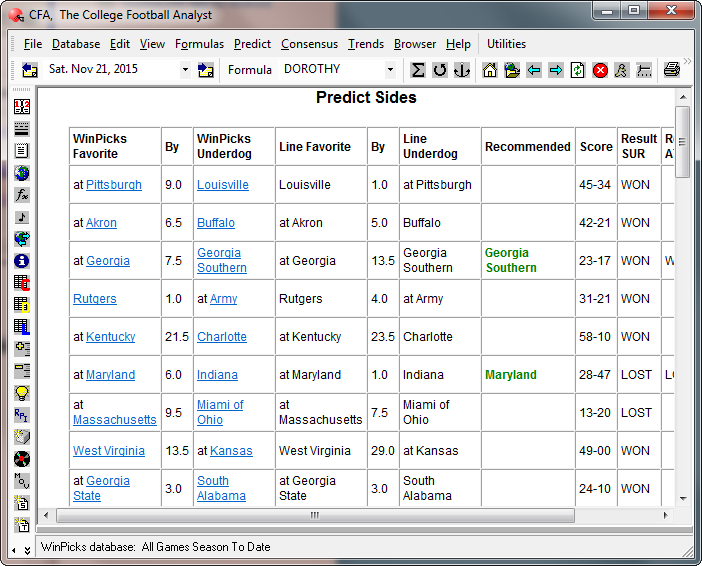
Figure 8.70 - Predicting Sides (CFA)
The prediction screen is divided into 11 columns:
- WinPicks Favorite - The team that WinPicks predicts to win.
- By - The WinPicks line. WinPicks expects its favored team to win by this many points.
- WinPicks Underdog - The team that WinPicks predicts to lose.
- Line Favorite - The team the sportsbook predicts to win.
- By - The actual betting line (point spread) for the game.
- Line Underdog - The team the sportsbook predicts to lose.
- Recommend - If a team appears in this column, WinPicks is predicting that this team will cover the line. A formula recommends picks when the difference between the actual line and the WinPicks line is within the range of the betting window.
- Score - Once the game has been played, this column lists the score in this format: WinPicks Favorite - WinPicks Underdog.
- Result SUR - If the game has been played, this column tells you if WinPicks picked the winner of the game correctly. WON means that WinPicks was right. LOST means that WinPicks was wrong.
- Result ATS - If the game has been played, this column displays how WinPicks did against the spread. If WinPicks did not recommend a pick against the spread, this column is left blank. However, if WinPicks did recommend a pick, WON means that WinPicks was right. LOST means that WinPicks was wrong.
- Details - Click this link to see a summary of how WinPicks made its prediction.
Predicting Straight Up
STRAIGHT UP is the third prediction grid, new in WinPicks 2.0, and it answers the simplest question of the three: who wins the game? Select STRAIGHT UP from the PREDICT menu.
The original program had no such screen, because it graded everything against the spread at a flat -110. A straight-up pick only becomes a bet when the money line's actual price is known - which it now is. The screen is shown in Figure 8.75.
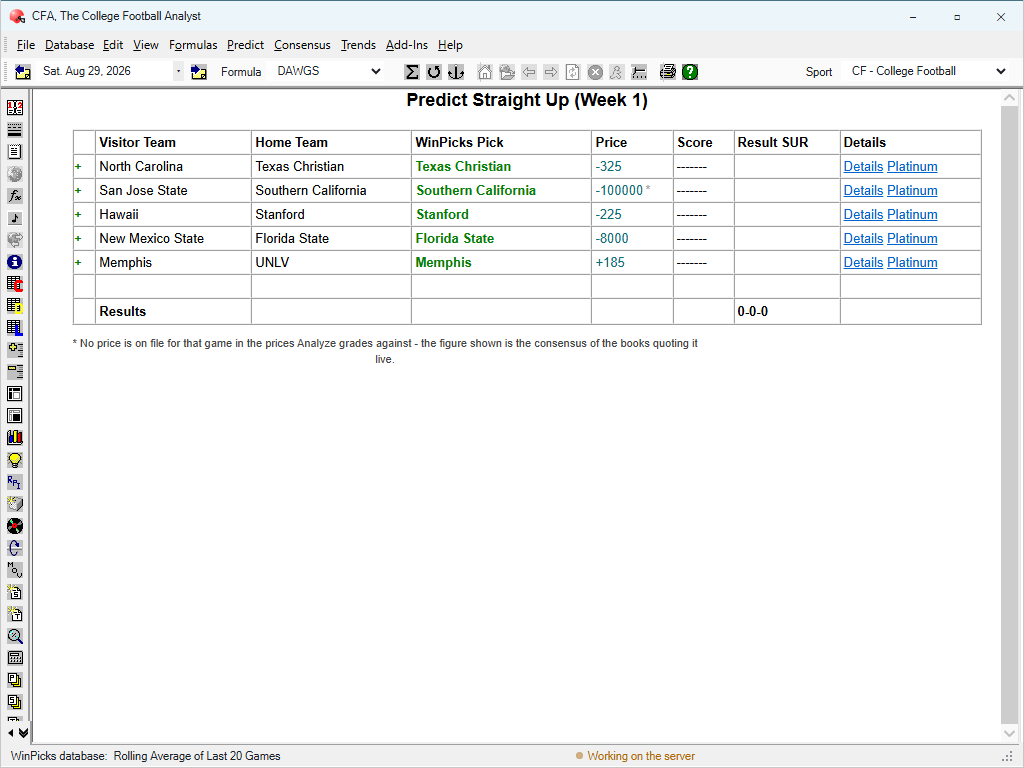
Figure 8.75 - Predicting Straight Up (CFA)
The screen lists every game on the current date, in the same format as Predict Sides and Predict Totals:
- Visitor Team and Home Team - the matchup.
- WinPicks Pick - the team the current formula predicts to win outright, in green.
- Price - the money line for the picked side, from your price basis. An asterisk means no price is on file in the basis Analyze grades against, so the figure shown is the consensus of the books quoting it live - the footnote under the grid in Figure 8.75 says exactly that (see Prices on the Predict Screens, below).
- Score and Result SUR - once the game is played, the score and whether the pick WON, LOST or pushed. A Results line at the bottom totals the record; in the figure it reads 0-0-0 because none of the games have been played.
- Details - the same detailed prediction window the other grids open, and beside it a Platinum link straight to the game's Platinum Page.
The picks here can never disagree with Predict Sides: both screens read the same engine run, and the straight-up pick is simply the side the formula makes the winner. What this screen adds is the price - and Figure 8.75 shows why that matters. The formula likes Stanford at -225 and Florida State at -8000: picks that will almost certainly "win", and can barely pay. A formula that picks 60% of winners straight up can still lose money if every winner was priced like that, and the Price column is where you see it before it happens, not after.
Click the green + at the left of any row to see every book's price for the game.
Predict Agents: Formulas That Reason
WinPicks Reference Manual Section 8.7b. Predict Agents
A formula takes what is known before kickoff and predicts the score. The Formula Agents do the same by reasoning rather than by weights: each is a model given the game's pregame record and one emphasis, and each returns a predicted final score for both teams. The side, the total and the winner are what that score says against the market's number, by one rule for every agent: a play needs the agent's number to clear the market's by a point.
Select AGENTS from the PREDICT menu. The grid is laid out like the Consensus screens: ROT, the line (or the total, or the game), THE CONSENSUS, BLIND, the score, the result, and then one column per agent. Every cell is a number - the agent's own line on SIDES (NE -4.8), its own total on TOTALS (Over (45.0)), its predicted score on STRAIGHT UP - and it is printed in the pick colour only where it is a play. A cell at the market's number is a pass, and reads as one. Hover a cell for the agent's one line of why. The buttons at the right switch between STRAIGHT UP, SIDES and TOTALS. The RESULTS row carries a won-lost-tied record under every column, so the track record sits under the picks that made it.
Two rosters. The BLIND agents - power, form, matchup, efficiency, injuries, weather, rest, trends, situation - are given the record with every market field removed: no line, no total, no prices, no movement, no public split. Their number is independent, the way a formula's is, and the BLIND column is their mean score run through the same rule. The market agents - market, movement, public, formulas, contrarian - read the price block too; they are the layer that says where the number is wrong. THE CONSENSUS is the mean of all of them.
Picks are made forward only, stamped when made, and graded when the game is final at the closing line and the price on file. An agent is never shown a result and never run on a date already played, so the record is out of sample from its first pick. Football only for now; the other sports open with their seasons.
NL and NR on the Predict screens
Two short labels appear where a number would normally be, and they mean different things:
- NL - No Line. The books have not posted this market. There is nothing to bet and nothing to grade against.
- NR - Not Rated. The market exists - the line or the total is right there in the next column - but the formula produced no number for this game. The usual reason is a team the statistics database does not carry, which on a college card most often means an FBS side hosting an FCS visitor.
The distinction matters because it tells you whose gap it is. NL is the book's; NR is ours. A game marked NR is not a game the formula dislikes - it is a game the formula never saw, and it is left out of the Results line rather than counted as a miss.
Predicting Totals (Over/Unders)
WinPicks Reference Manual Section 8.8. Predicting Totals (Over/Unders)
TOTALS is used to handicap the total (or over/under) odds for a game. When you select TOTALS from the PREDICT menu, a screen appears like the one shown in Figure 8.80.
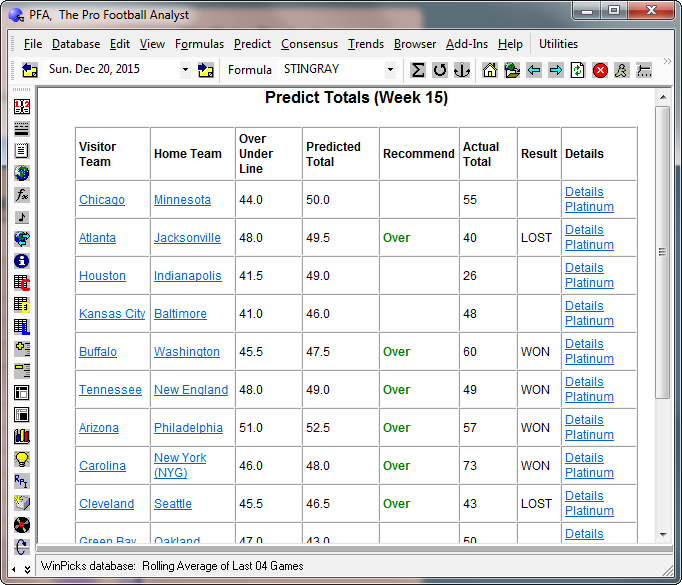
Figure 8.80 - Predicting Totals (PFA)
The PREDICT TOTALS screen is divided into eight columns:
- Visitor Team - This is the visitor, or road team.
- Home Team - This column lists the home team, or the site where the game will be played. The game site could be a very important piece of information when handicapping over/unders for college or pro football. If the game will be played in an outdoor stadium in a city expecting bad weather (Chicago in December, for example) it could mean a low score.
- Over/Under Line - This is the number you wager against. It is the point total the oddsmakers have predicted for the game.
- Predicted Total - This is the point total that WinPicks is predicting for the game, based on the prediction formula currently in use.
- Recommend - This is the pick that WinPicks is recommending. OVER means play the over. UNDER means play the under. If nothing appears in this column, WinPicks has no recommendation for the game.
- Actual Total - If the game has already been played, this column shows the total number of points scored in the game.
- Result - If the game has been played, this column tells you if WinPicks made the right recommendation on the game. WON means that WinPicks was right. LOST means that WinPicks was wrong.
- Details - Click here to see details of how WinPicks made its prediction.
Like ATS predictions, over/under picks are made using the stats included in the prediction formula. However, when picking over/unders, WinPicks doesn't try to analyze matchups to determine who has the stronger team or who is more likely to win. Instead, it tries to determine the collective strength of both teams. It determines the collective strength by computing the sum of both team's offensive rankings minus the sum of both team's defensive rankings. This value is scaled by the point spread multiplier in the same manner as for ATS picks. The result is then added to the overall league average for total points scored in each game. By adding in the league average, the over/under prediction is indexed to actual results for all games in the database.
Sound confusing? One simple way to look at it is this: If the two competing teams have good offenses and weak defenses, WinPicks will predict a high point total. Two teams with good defenses and weak offenses will result in a low predicted point total. Once a prediction is made, WinPicks compares the projected over/under to the actual over/under using the betting window discussed in Section 8.2. If the projected over/under is within the betting window, WinPicks will recommend that you play the OVER or UNDER.
Prices on the Predict Screens
Every Predict grid in WinPicks 2.0 carries prices beside its lines. The conventions are the same on every screen that shows a price - the Predict grids, the Platinum Page and Odds Compare - so they are described once, here. Figure 8.85 shows Predict Sides with a game's price panel open.
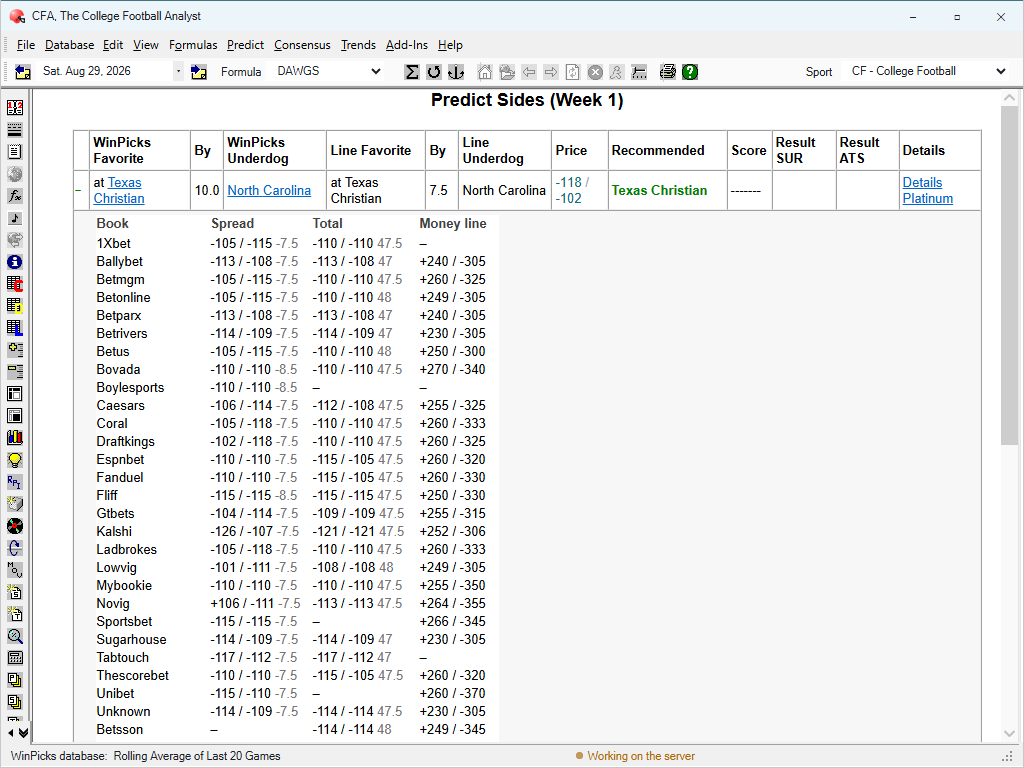
Figure 8.85 - Predict Sides with Every Book Open (CFA)
The Price column. On Predict Sides and Predict Totals the price is shown in the form -118 / -102: the favourite's price first, then the underdog's (for totals, the over's and then the under's). On Predict Straight Up it is the money line for the picked side. The prices come from your price basis - see The Price Basis, in section 6.
The green +. Every row starts with a green +. Click it and the row opens into every bookmaker pricing that game - the open panel in Figure 8.85. Each book is a row; the columns are the three markets, each read the same way: under Spread, "-105 / -115 -7.5" is the price on each side and then the line itself; under Total, the over and under prices and the number; under Money line, the two teams' outright prices. Click the + again (it becomes a -) to close the panel. It is the quickest way to answer "who has the best number on this game?" without leaving the screen you are on.
The Platinum Page has the same panel behind its "+ all books" link, shown open in Figure 8.86 - along with the page's price summary: the spread price, the total price, the money line, the game type, and a Price basis line naming the basis grading this page, so the numbers above it cannot be misread.
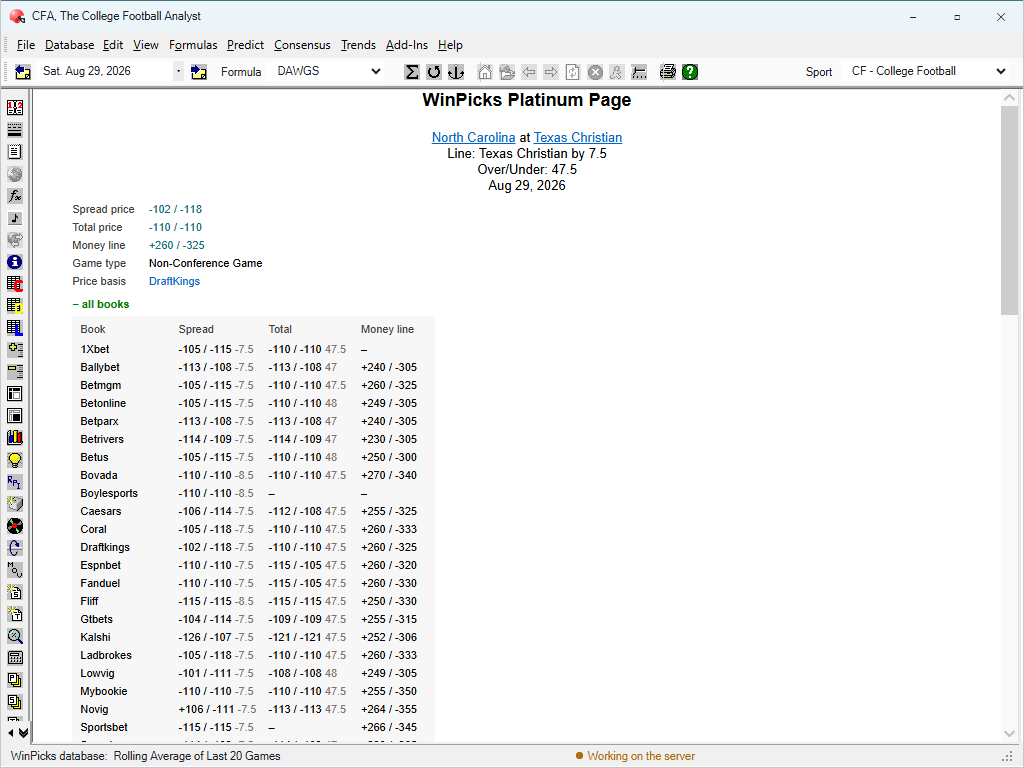
Figure 8.86 - The Platinum Page's Price Summary and All Books Panel (CFA)
The asterisk. A price marked with an asterisk did not come from the basis in force: no price is on file there for that game, so the figure shown is the consensus of the books quoting it. A footnote under the grid repeats this. The mark exists so that a number is never silently passed off as the basis's own quote.
The dash. A dash means no book posted the market at all - several appear in Figure 8.85, where a book carries the spread but not the total. A dash is never replaced with a guessed -110. The program does not invent a price it does not have, because every units figure downstream would inherit the invention.
Movement. Where the opening number is on file, screens that write a line out in words append the move - "(opened -3, moved 1.5 toward home)" - so a closing number is never mistaken for the number that was there all week. The trend alert reports carry this notation, and Odds Compare colours its best prices by whether they improved or worsened since the open.
Making Pool Picks
WinPicks Reference Manual Section 8.9. Making Pool Picks
POOL PICKS is a useful feature for those who participate in pools where a point value is assigned to each game. For example, in a football pool with 15 games, you might get 15 points for making your top pick correctly, 14 points for your second pick, and so on.
To see this information, select POOL PICKS from the PREDICT menu. A screen appears with nine columns. The first four columns (from left to right) show the game date and the WinPicks prediction for the game. The remaining columns are:
- Pick Value - Each game is ranked in the order of the predicted point spreads. The games with the biggest point spreads are ranked the highest. For example, the biggest predicted point spread might be 13 points. If so, the team favored by 13 is the top ranked pick of the week. If 15 games are scheduled the top pick has a value of 15, and the bottom pick has a value of 1.
- Total - This column will only contain information if the games have already been played. If the game was picked correctly, this column shows the number of points awarded for each game. The pool score is also shown, at the top of the column. The pool score is the total value of the correct picks. For example, a perfect pool score is 120 for a 15-game schedule, 105 for a 14-game schedule, 91 for a 13-game schedule, or 78 for a 12-game schedule.
- Score - If the game has been played, this column shows the score.
- Result SUR - If the game has been played, this column shows whether WinPicks was right or wrong about the straight-up outcome of the game. WON means that WinPicks was right. LOST means that WinPicks was wrong.
- Line - This column shows the team that was favored, and the point spread for the game. Normally, but not always, the heavily favored teams will have the highest pick value.
- Result ATS - If the game has been played, this column shows whether WinPicks was right or wrong about the ATS outcome. WON means that WinPicks was right. LOST means that WinPicks was wrong.
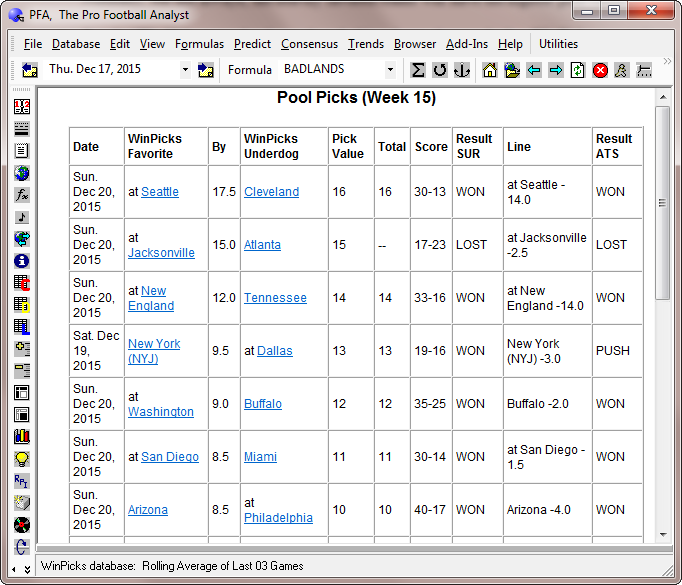
Figure 8.9 - Pool Picks (PFA)
Making Detailed Predictions
WinPicks Reference Manual Section 8.10. Making Detailed Predictions
WinPicks can show you how predictions are made by displaying a summary of game information. This summary includes the predicted outcome, the line, the projected point total, and a bar graph (PFA only) that illustrates how the two teams match up statistically. To use this feature, select SIDES or TOTALS and then click on "details" next to one of the games on the list. The detailed prediction window (PFA version) appears as shown in Figure 8.100.
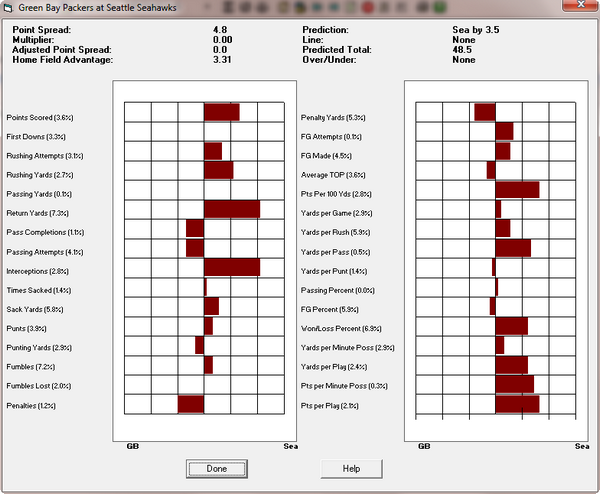
Figure 8.100 - The Detailed Prediction Window (PFA)
The detailed prediction window for PFA compares the teams in 32 different statistical categories. This information is displayed using a bar graph. The bar for each statistic points toward the team with the advantage. The longer the bar, the greater the advantage. If no bar is shown for a given statistic, then the two teams are considered equal in that category. Dark colored bars are used for statistics included in the prediction formula. Light colored bars are used for statistics that are not included (percentage weight equals 0).
The percentage weights in the formula are used to obtain a point spread. This initial Point Spread is shown at the top of the window. This point spread is then multiplied by the formula's Point Spread Multiplier to get the Adjusted Point Spread. Then, the Home Field Advantage is added to obtain the final prediction for the game. For example, the initial Point Spread might be 3.1. If the Point Spread Multiplier is set to 0.8, the Adjusted Point Spread is 2.48 points (3.1 x 0.8). If the HFA is 2.5 points, the home team is predicted to win by 4.98 points (2.48 + 2.5). This number is rounded to the nearest half point, so PFA predicts that the home team will win by 5 points. The prediction is shown in the top right corner of the window along with the line for the game, and the projected point total.
The detailed prediction windows for CFA and PBA display the prediction information in tabular form (no bar graph) as shown in Figure 8.101.
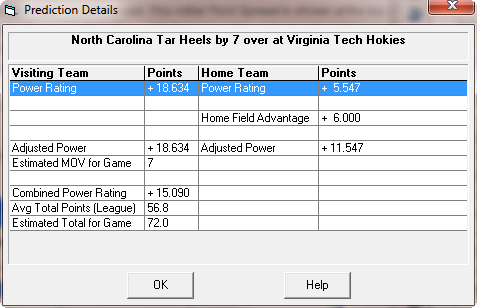
Figure 8.101 - The Detailed Prediction Window (CFA)
The 32 statistics above are the ones the original program knew. The feed now holds hundreds for every game, and the detailed prediction window in Pro Football Analyst continues past the 32, in the same panels, with every other statistic on file for the two teams. The formula's own 32 stay exactly where they were, in the engine's order, with each one's weight in its label. The rest follow, ranked by how well each has predicted the winning margin across the league - the most telling first - so the bottom of the list is the part you can safely stop reading.
For these added rows the bar is measured in standard deviations across all 32 teams: a bar reaching halfway across the grid is a two-standard-deviation gap, and a bar pointing right favours the home team. A statistic that does not vary across the league at all says so in place of a bar. Where a game is not yet in the stat file, or neither side has a prior game this season to average, the window says which.
College Football Analyst shows the same grid beneath its power-rating walk.
Making Single Game Predictions
WinPicks Reference Manual Section 8.11. Making Single Game Predictions
SINGLE GAME lets you predict the outcome of any possible game, including preseason games or "what-if" matchups between teams not scheduled to play each other. To use this feature, simply select the visiting and home team. The detailed prediction window then appears, displaying the prediction for the game and the projected point total. No line for these games are shown, since they are not on the schedule.
Making Consensus Predictions
WinPicks Reference Manual Section 8.12. Making Consensus Predictions
WinPicks includes an extremely powerful feature that lets you use more than one formula at once, and then predict games using a formula consensus. In fact, you can load as many formulas as you wish. WinPicks will recommend unanimous picks (where all formulas recommending a pick agree), or majority vote picks (where more than half of the formulas recommending a pick agree). You can do everything with multiple formulas that you can do with a single formula; you can predict straight-up, you can predict sides, you can predict totals, and you can analyze the prediction results.
To get started, select STRAIGHT-UP, SIDES or TOTALS from the CONSENSUS menu. You'll see a menu like the one in Figure 8.120.
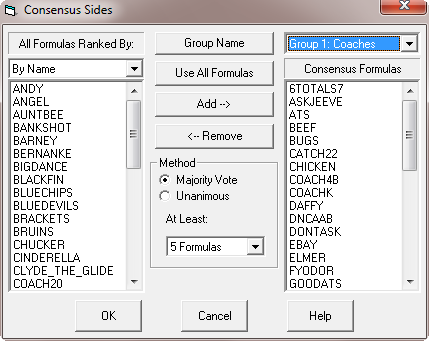
Figure 8.120 - Choosing the Formulas to Include in the Consensus
The menu shown in Figure 8.120 shows two lists of formulas: the left side list shows all of the formulas that contain a database setting. This list can be sorted using the pull down menu above the list. The sort order can be made alphabetically by name, or by the current rankings for the formula as displayed on the MY FORMULA screen. The right side lists the formulas included in the currently selected consensus group. The right side box has a pull down menu on top that allows you to select one of 20 different formula consensus groups. You can add or remove formulas from any of these 20 groups, and all of the groups are automatically saved.
To add a formula to the currently selected group, select a formula from the Formula List and click the ADD button. To remove a formula from the currently selected group, select a formula from the Consensus Group and click the REMOVE button. To add all of the formulas on your system to a formula group, click the USE ALL FORMULAS button.
Each consensus formula group can be given a name. Click the GROUP NAME button to enter a descriptive name for the current formula group.
The Formula Agents (section 8.7b) appear in the group list as two fixed groups after your twenty: FORMULA AGENTS, all of them, and FORMULA AGENTS (BLIND), the nine that never see the market. Choose one and every Consensus screen works as it does for any group - STRAIGHT-UP, SIDES and TOTALS show the agents' numbers one column each with the consensus beside them, and ANALYZE THIS YEAR and ANALYZE N GAMES grade the consensus date by date on the same grid. An agent group cannot be edited here: an agent is not a file.
Each formula in a group runs on the database it was saved with - its own Data Method and window - rather than on the database you are browsing. The original program did the same. It means the consensus column for a formula can differ from what PREDICT SIDES or PREDICT TOTALS show for that formula on the same day, because the Predict screens use the database currently selected. If you want the two to agree, save the formula with the database you want it to use.
Consensus Method
After you select the formulas to include in the Consensus Group, you then must decide what method to use. There are two methods to choose from:
- Majority Vote Method - If you select this method, WinPicks will check the recommended picks from all of the formulas in the Consensus Group. It then counts which picks are recommended for every game. Each formula recommendation counts as one "vote". For example, if you are predicting SIDES and Denver is playing Kansas City, WinPicks will count the number of votes for each team. If more formulas vote for Denver than Kansas City, the consensus will recommend Denver. There has to be a majority for the consensus to recommend a pick. If an equal number of formulas vote for each team, there is no majority and the consensus will not recommend a pick.
- Unanimous Method - If you select this method, WinPicks will check the recommended picks from all of the formulas in the Consensus Group. It then counts which picks are recommended for every game. Each formula recommendation counts as one vote. The consensus will only recommend a pick if the voting is unanimous, or if every formula that recommends a pick on a given game recommends the same pick. For example, if you are predicting SIDES and Denver is playing Kansas City, WinPicks will count the number of votes for each team. If all of the votes go to Denver, the consensus will recommend Denver. However, if even one formula recommends Kansas City, the consensus is not unanimous, and the consensus will not recommend a pick.
The AT LEAST parameter determines the number of formulas that must vote before a majority or unanimous pick is recommended. For example, if you have selected that at least four formulas must vote, a pick will not be recommended if the unanimous method is in favor of the pick by a vote of 3-0, or if the majority method is in favor of the pick by a vote of 2-1.
After selecting a consensus group and method, select OK to save the information. WinPicks will use this consensus group and method as default settings until you change them. Select STRAIGHT-UP, SIDES (Figure 8.121), or TOTALS from the CONSENSUS menu depending upon the type of predictions that you want to make.
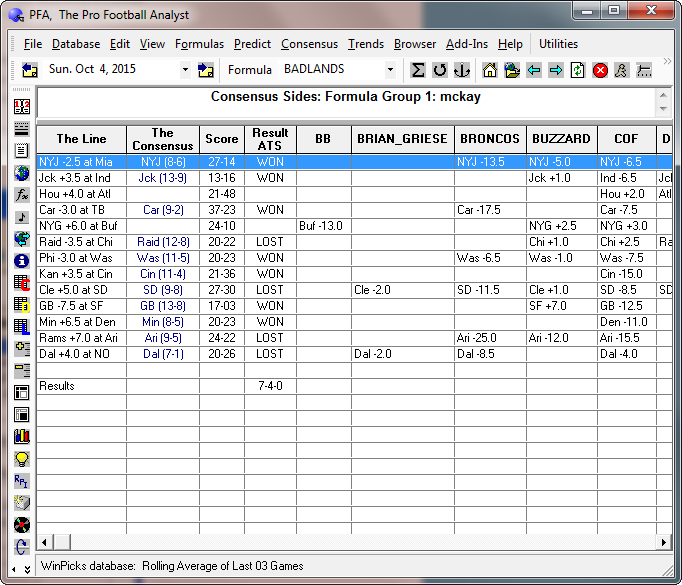
Figure 8.121 - Consensus Sides (PFA)
The unanimous vote method was selected in Figure 8.121. Each formula's picks are listed in a separate column. If you use more than a few formulas, you may have to scroll the screen to the right to see them all. The column labeled The Consensus shows the picks recommended by the consensus, and the results of the consensus vote.
Analyzing the Consensus
WinPicks can analyze the consensus picks just as it analyzes the picks made by a single formula. To analyze a formula consensus group for the current season, select ANALYZE THIS YEAR from the CONSENSUS menu, and then select the formula group you want to analyze. SELECT ANALYZE N GAMES from the CONSENSUS menu to see how well the consensus has picked over any number of past dates in the database.
Compare Formula Parameters
The formula consensus generally works best if it includes a diverse group of formulas (see "Consensus Tips" below). To compare the parameters of the formulas in your group, select COMPARE FORMULA PARAMETERS from the CONSENSUS menu. A display will appear like the one shown in Figure 8.122. The display lists the contents of every formula contained in the consensus group, so you can see if they are emphasizing the same parameters. This will allow you to make decisions about whether to add or delete formulas for the group to make it more diverse.
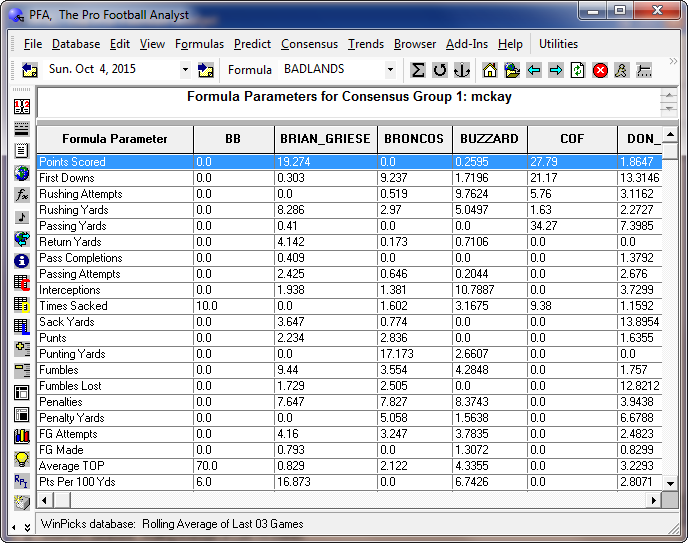
Figure 8.122 - Comparing Consensus Group Formula Parameters (PFA)
Consensus Tips
The formula consensus is a powerful tool that can produce very high winning percentages when used properly. However, there are a few things you should be aware of when using consensus picks.
- Speed - The number of formulas you can use in a consensus is limited only by the amount of memory you have. However, if a large number of formulas are loaded, it might take a long time to analyze the performance of the consensus.
- A majority vote may yield too many picks - If you use a majority vote with a large number of formulas, WinPicks might recommend a pick on nearly every game. For example, if you include 25 formulas in your consensus, you will probably get 5 or more formulas voting on every game. Since its unlikely for the vote to end in a draw, the consensus may recommend a pick for every game on the schedule. Keep in mind that the majority vote will recommend a pick whether the consensus is 9-8 or 16-1, so be sure and look at the actual voting results. A close vote (like 9-8) may be a signal to avoid the game.
- A unanimous vote may yield too few picks - If you use a unanimous vote with a large number of formulas, WinPicks may seldom recommend a pick. For example, if you include 25 formulas in your consensus, you will probably get 5 or more formulas voting on every game. The more formulas you have voting, the less likely you are to receive a unanimous pick.
- Use a diverse group of formulas in the consensus - The consensus works best if it includes formulas that use different variables and database methods. If your consensus consists of a group of formulas that are nearly the same, it probably won't work. Every formula looks at a game from a unique angle. If you look at a game from a wide variety of angles and still come up with a consensus pick, you probably have a very solid play.
- Formulas used in the consensus must have a database selected - Only formulas that have a database selected can be used as part of the consensus group.
NightShift Formula Tuner
WinPicks Reference Manual Section 8.13. NightShift Formula Tuner
WinPicks lets you tune multiple formulas over long periods using the NightShift Formula Tuner. While you are at work, or while you are sleeping, it keeps searching for the weights that score best against the objective you picked - and reports the holdout result beside the training one, so you can see how much of the improvement was real.
To get started, select NIGHTSHIFT FORMULA TUNER from the FORMULAS menu. You'll see a window similar to Figure 8.130:
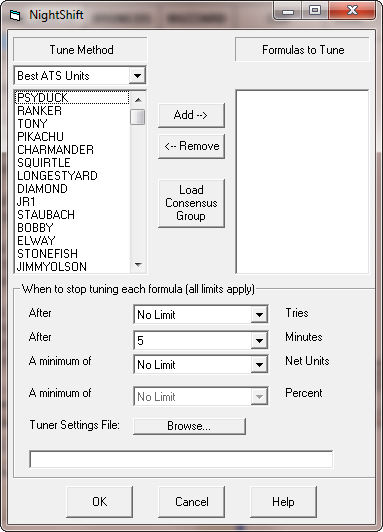
Figure 8.130 - The NightShift Formula Tuner Window
The window lists all of your prediction formulas sorted according to the currently selected "Tune Method". There are five different tune methods that you can select, including "Best ATS", "Best OU", "Best SUR", "Best ATS Percent", and "Best OU Percent". You can change the "Tune Method" by using the dropdown list on the upper left side of the window.
To select formulas to tune, highlight the formula name(s) and click ADD. The list on the right side of the screen always displays the formulas that will be tuned by NightShift. To remove a formula, highlight the formula name and click REMOVE. To save time, you can also load an entire consensus group of formulas at once by clicking on the large button labeled LOAD CONSENSUS GROUP.
At the bottom of the window, NightShift lets you select when to stop tuning each formula. All three limits apply, and NightShift will stop when the first of the three limits is reached. The limits are:
- The number of tries to attempt
- A time limit in minutes for each formula
- A minimum number of net units or straight up percentage (depending on the method selected)
After selecting the formulas to tune and limits to use, click OK to start NightShift. A small window will appear that tells you how many formulas that NightShift has tuned so far. The large FORMULA TUNER window will also appear. It displays the results for the formula that is currently being worked tuned. You can stop the tuner at any time by clicking the "Stop Tuner" button. Another window will then appear that asks you whether you want to exit NightShift.
By default, NightShift uses a 5 minute limit on each formula, but you can change the settings depending on how many formulas you want to tune, and by how long you want NightShift to run. For example, if you have 20 formulas to tune and need to limit the time to 10 hours, you can set the time limit to 30 minutes per formula.
Creating a Tuner Settings File for use with NightShift
NightShift will tune all formulas to "Best ATS Units" unless you first create a "Tuner Settings File" from the Formula Tuner window. To create a "Tuner Settings File" start the Formula Tuner and select any combination of the following five parameters:
- Best ATS Units - Tunes a formula to produce the highest number of against the spread net units
- Best ATS Pct - Tunes a formula to produce the highest winning percentage against the spread
- Best Totals Units - Tunes a formula to produce the highest number of net units for totals (over/unders)
- Best Totals Pct - Tunes a formula to produce the highest winning percentage for totals (over/unders)
- Best SU Pct - Tunes a formula to produce the highest percentage of straight-up winners
When you are finished, click the "Save Settings" button at the bottom of the window and select a name for the "Tuner Settings File". Then, click "Cancel" to exit the Formula Tuner. To load the settings file using NightShift, click on the "Browse" button and select the file that you wish to use.
The Platinum Page
WinPicks Reference Manual Section 8.14. The Platinum Page
WinPicks has so many powerful options for analyzing games, that it can sometimes be difficult to sort through all of the available information. If you are looking for a way to quickly handicap a particular game, the "Platinum Page" is a perfect solution. All versions of WinPicks can generate a "Platinum Page" for every game on their schedule. This page summarizes WinPicks's opinion on a game using three methods: how your prediction formulas are picking the game, how the key trends pick the game, and how well the two teams have fared against each other in the past in head-to-head matchups.
If all three methods favor the same team, then WinPicks recommends the game as a Platinum Pick. If two methods agree, and one has no opinion, the game is recommended as a strong play. If two methods agree and one method is opposed, the game is called a possible play. Otherwise, no recommendation is made. The analysis is performed both against the spread (ATS), and against the totals line (for over/under selections).
To view a "Platinum Page," select PLATINUM PAGE from the PREDICT menu. A window appears listing all of the games scheduled on the current date. Select a game from the list to view its "Platinum Page." To view the next game on the list, press Alt-Down. To view the previous game on the list, press Alt-Up. (F6 and F5 do the same thing where your browser is not already using them - see GETTING AROUND.) Note that the entire "Platinum Page" is too large to view on one screen, so scroll down to see the entire page.
The Three Methods Displayed on the Platinum Page
The three methods used by the "Platinum Page" to handicap a game are described in the sections below.
- The Prediction Formula Method - This method summarizes how each of your prediction formulas predict this particular game. The SELECT PLATINUM FORMULAS option on the PREDICT menu allows you to select the prediction formulas that you want to use. You can select all of the available formulas that you have, or you can select only the formulas included in a formula consensus group. Both of these options are available for ATS picks and for Totals picks. If you select all of the available formulas, a formula will be included unless it was specifically excluded by checking a box on the EDIT FORMULA screen. However, if a formula is part of a consensus group, it will be included even if the exclude box has been checked.
The prediction formula method is illustrated in Figure 8.140. This example shows the 2012 Super Bowl game between the New York Giants and New England Patriots where New England was favored by 3 points. In this instance, 31 of the user's formulas are on the Giants, and 28 are on New England, so the formula method will take New York +3 as its ATS pick. Thirty-seven formulas like the under, and only 11 like the over, so the formula method will favor taking the under. Note that only the prediction formulas that are making a recommended play on the game are counted in this summary, and that most formulas recommend only a small percentage of the games. For this example, 59 formulas on the user's system have an ATS recommendation on the game, out of about 200 formulas on the system. Thus, the results produced by this method become more interesting and accurate when you have a large number of formulas.
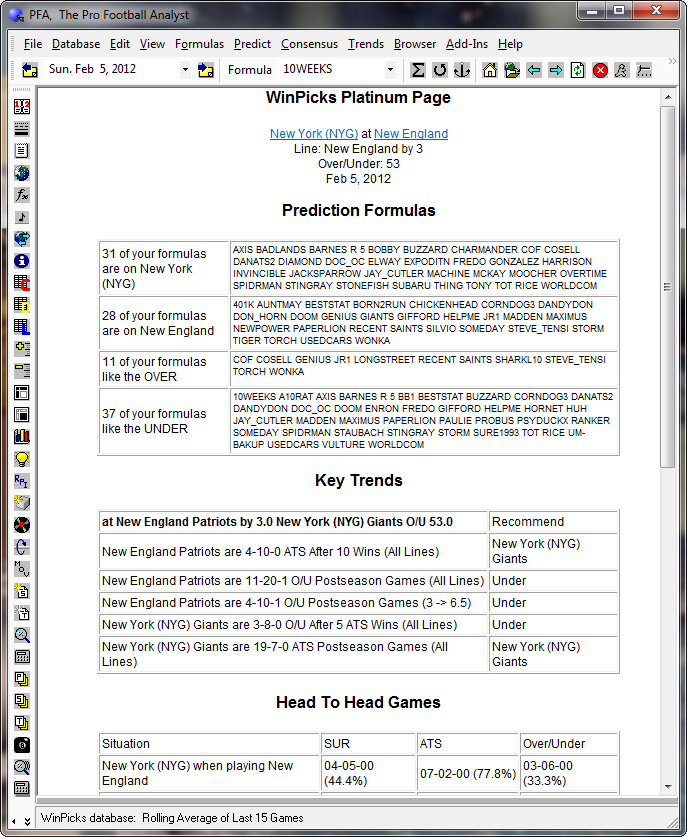
Figure 8.140 - The Top Section of the Platinum Page (PFA)
- The Key Trends Method - As shown in Figure 8.140, two key trends favor New York as the ATS pick, and none favor New England, so the edge goes to New York. Note all that three key trends recommended the under and none recommend the over. The date range the key trends are drawn from is set with CHANGE PLATINUM TREND DATE RANGE on the PREDICT menu.
- The Head-to-Head Matchup Method - This section summarizes all of the head-to-head matchups between the two teams in past games. A table summarizes the results, followed by a list that shows the date, the score, and the odds information for every head-to-head matchup. In this example, New York has the ATS edge (7-2) and the under also as the edge by 6-3.
The Pick Recommendation Summary
The bottom of the "Platinum Page" shows the pick recommendation summary. All three of the methods favor New York ATS so New York +3 is recommended as a Platinum Pick. The under was also recommended as a Platinum Pick.
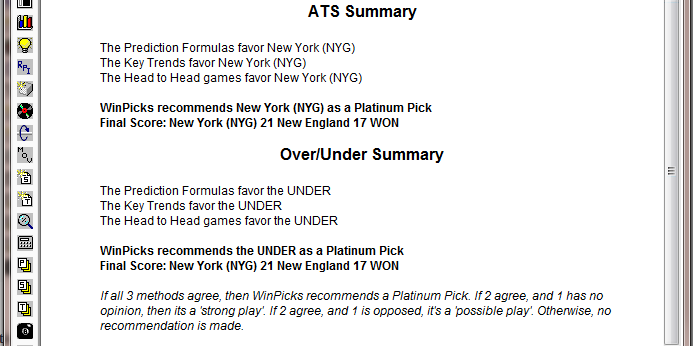
Figure 8.141 - The Pick Recommendation Summary (PFA)
Platinum Picks should be given strong consideration when you place your wagers. In this particular game, the New York Giants (+3) not only covered, but won the Super Bowl by a score of 21-17. The point total of 38 was well under the totals line of 53, so the under was also a winner.
Evidence Depth
Every rated play on the Platinum Page, and every row of SHOW ALL PLATINUM PICKS, carries one to five stars. The stars score HOW MUCH EVIDENCE sits behind the rating - not how likely the play is to win, which nothing on this page claims. Sides and totals are scored separately, because a series can be rich on one and carry nothing on the other. On the summary the breakdown appears when you hover the stars; on the page itself it is printed in full, because a phone has no hover.
The breakdown is six lines, each with what it counted beside the score:
- sample (0-30) - trend games and head-to-head meetings; a meeting is this exact matchup, so it counts for twelve trend games.
- recency (0-25) - how many of the meetings fall in the last two seasons, within five, or older. A 1994 meeting is history, not evidence.
- relevance (0-20) - how many of the trends are scoped to this line, and how many meetings were played at a line like this one.
- agreement (0-15) - whether the trends and the head-to-head lean with the pick, against it, or are split.
- track record (0-20) - the formula set's own graded record at this tier and bet, season to date, printed beside it. Depth only: a 4-8 is as much evidence as an 8-4, and the record tells you which.
- capped at - a ceiling, and why. No head-to-head history caps the score at 74; no trends on the game at 70; no totals history in the series at 80; and the first three weeks of a season cap it at 60, 72 and 84, because a week-one game has no current-season form behind either team.
The Platinum Light (Pro Football Analyst)
A Platinum Play is lit - drawn with its ring - when three things hold: it is a Platinum Play, the trend edge from THIS WEEK'S EDGES (section 9) is on the same side, and the play has not lost money at real prices this season. A strong edge on the other side does not light it, however strong.
College Football Favourites of 7 or More
On a College Football Analyst Platinum Play where the spread is 7 points or more, the page takes the opposite side to the engine's own pick, marks the row, and prints this beneath the table: Side inverted. On a college football Platinum Play with a spread of 7 points or more, this play takes the opposite side to the engine's own pick. Tested at real DraftKings prices on 522 such plays since 2017: +6.9% return overall, +8.1% through 2022 and +4.4% from 2023 on. Past results, not a forecast. Pro Football Analyst's Platinum Plays are not inverted; the correction is for college football only.
Show All Platinum Picks
WinPicks Reference Manual Section 8.15. Show All Platinum Picks
SHOW ALL PLATINUM PICKS is a useful feature that summarizes all of the games on today's schedule, and displays whether or not the game received an ATS or OU recommendation as a "Platinum Play", a "Strong Play", or a "Possible Play". "Platinum Plays" are displayed in boldface blue letters.
To use this feature, select SHOW ALL PLATINUM PICKS from the PREDICT menu. You'll see a screen similar to Figure 8.150. All of the recommendations displayed on this screen were generated using the Platinum Page feature. It is a good idea to familiarize yourself with the Platinum Page to learn how these picks are generated, because SHOW ALL PLATINUM PICKS is only a summary of the recommended picks, it does not display the detailed information provided by the Platinum Page.
Please note that SHOW ALL PLATINUM PICKS is calculation intensive, and it can sometimes take several minutes or more before the summary is displayed. This will be particularly true with CFA and CBA when there are a large number of games on the schedule.
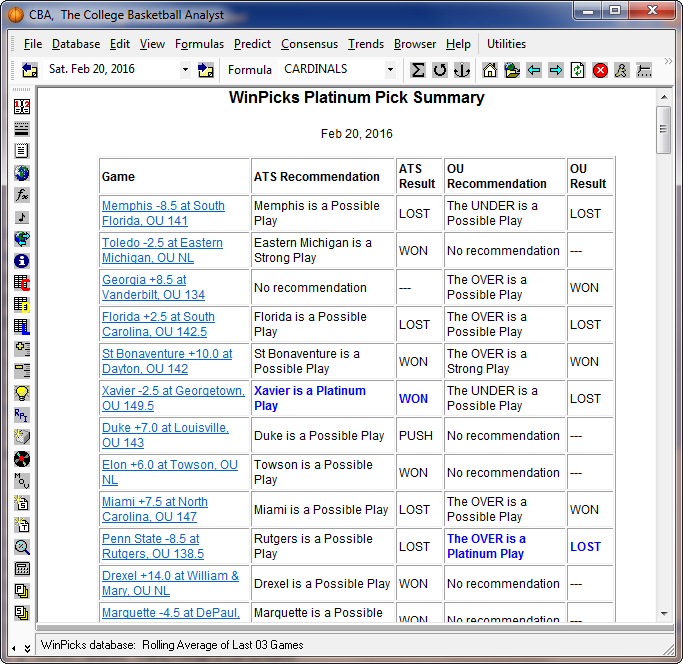
Figure 8.150 - Platinum Pick Summary (CBA)
Analyze Platinum Picks
WinPicks Reference Manual Section 8.16. Analyze Platinum Picks
ANALYZE PLATINUM PICKS allows you to see the past winning percentage of the picks generated by the Platinum Page. It shows the past records of the "Platinum Plays", a "Strong Plays", and "Possible Plays" for both against the spread (ATS) and over/under (OU) selections.
To use this feature, select ANALYZE PLATINUM PICKS from the PREDICT menu. You'll then see a menu that asks how many dates that you want to analyze. If you select 20 dates, for example, the analysis will cover the 20 dates prior to the current date. When the analysis is finished, you'll see a screen similar to Figure 8.160. The screen shows the winning percentage for each type of selection over all of the selected dates. It is a good idea to familiarize yourself with the Platinum Page to learn how these selections were generated.
Please note that ANALYZE PLATINUM PICKS is calculation intensive, and it can sometimes take a long time (many minutes) before this feature has finished running. This will be particularly true with CFA and CBA when there are a large number of games on the schedule. Also note that the more prediction formulas that you have, the longer this feature will take to run, and that adding, deleting, or modifying prediction formulas can change the picks generated by the Platinum Page.
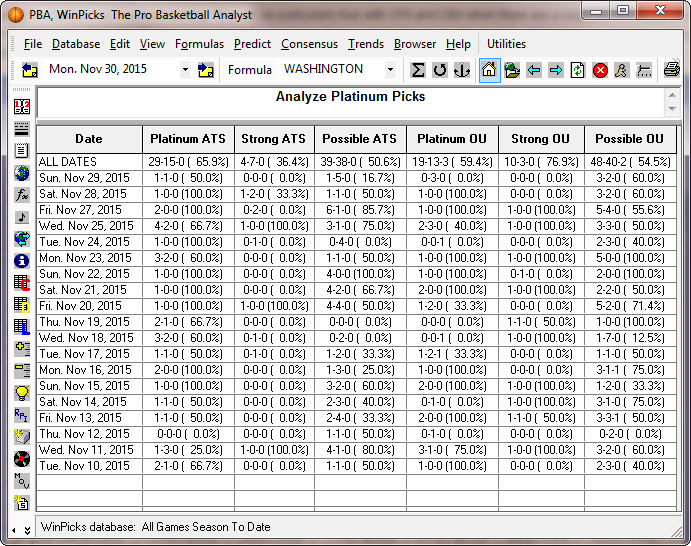
Figure 8.160 - Analyze Platinum Picks (PBA)
Net Units and Real / Priced
The money columns are graded at the prices on file for each pick, not at a flat -110. Which price depends on your Price Basis (section 6): the consensus price is the median across books, the number nobody can call flattering; the best available assumes the best price quoted by at least five books at the same number, which is what line shopping is worth; and one named book uses that book's own prices for every game in the archive that carries one. The picks do not change with the setting - only what they paid does.
REAL / PRICED shows the units over the bets that carry a real recorded price, and how many of the bets that is. A dash in a money column means no price is on file for that pick, not that the pick is missing.
Line Shifter
WinPicks Reference Manual Section 8.17. Line Shifter
Predictions formulas recommend picks that fall within the betting window. The betting window is the difference between the point spread or total predicted by the formula, and the actual line or totals line. When the line moves, a formula might drop or add picks from its list of recommendations. If the pick is on the edge of the betting window, a line move as small as 1/2 point can cause this to happen.
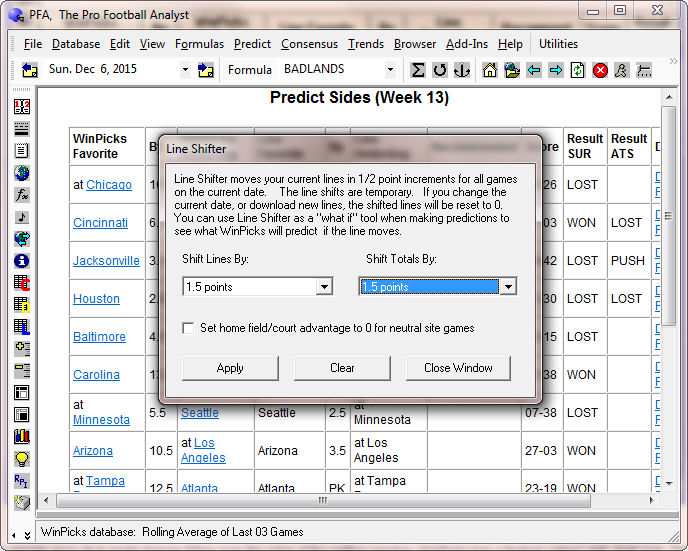
Figure 8.170 - Line Shifter (PFA)
To validate picks that might change if they near the edge of the betting window, WinPicks has a feature called LINE SHIFTER. This feature allows you to shift all of the lines for the current date to see what happens to the picks when the line moves. To use this feature, select LINE SHIFTER from the FILE menu. A window appears as shown in Figure 8.170. Use the menus to shift either the line or the totals line by any amount up to 10 points in 1/2 point increments. Check the box in the window if you want the home field/home court advantage to be set to 0 for games played at a neutral site. Click the "Apply" button to see how your picks change. Click the "Clear" button to return to the original lines.